
Setting Up and Configuring FlexNet License Server on Windows and Linux
Downloading and Preparing the License Server for Installation
-
On the MyDelta page left navigation pane, click Downloads.
If your license type does not support use of a license server, you might not see license server tools listed as available downloads on this page. If you think that something is missing, contact DeltaXML Support.
-
In the License Downloads section, click Download to start downloading the zip file for your product. You can choose the download location. The download starts immediately.
-
Unpack the zip file. A folder gets created in the format of
deltaxml-license-server-XXXXX-1_0. The daemon executables that are used to run the license server are placed in the bin subfolder.
Depending on your preferred operating system, you can run and control the license server using one of the following methods:
-
On Windows, use the desktop tool
lmtools.exe, which provides a graphical equivalent of the command line tools. -
On Linux, you can use the command line with commands such as
lmgrd,lmstat,lmdownetc. For the complete list of commands, see the FlexNet Publisher License Administration Guide. You can search forlmgrdto get you started.
Starting and Stopping the License Server in Linux
All the executables are available as a part of Linux license server download within the bin directory.
Start the license server using following command.
./lmgrd -c path-to-license-file
Stop the license server using following command.
./lmdown
Check the status of the license server using following command.
./lmstat
Starting and Configuring the License Server in Windows using lmtools.exe
You can set up the license server using the lmtools.exe interface, which which is available in the bin subfolder.
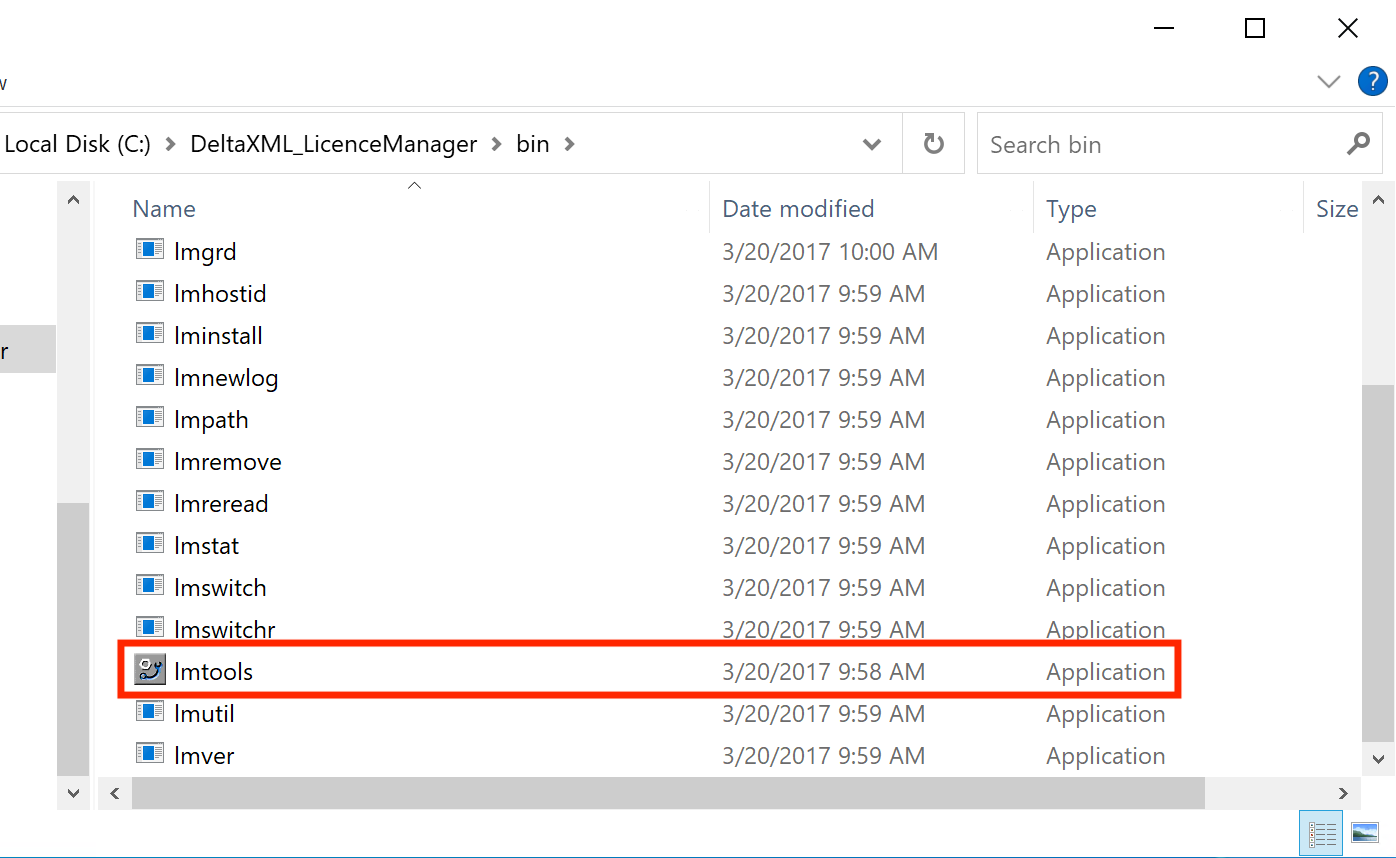
-
Start
lmtools.exeby double-clicking it.
-
Select the Config Services tab.
-
Click Browse to select the path to the
lmgrd.exefile. The complete path is\deltaxml-license-server-win_x64-1_1\bin\lmgrd.exe. -
Click Browse to select the path to the product license file.
-
For convenience, place a copy of your
.liclicense file in thebinsub-folder alongsidelmtools.exe. -
You can activate and download your license file at https://mydelta.deltaxml.com/ .
-
-
Select the Use Services checkbox.
-
Click Save Service.
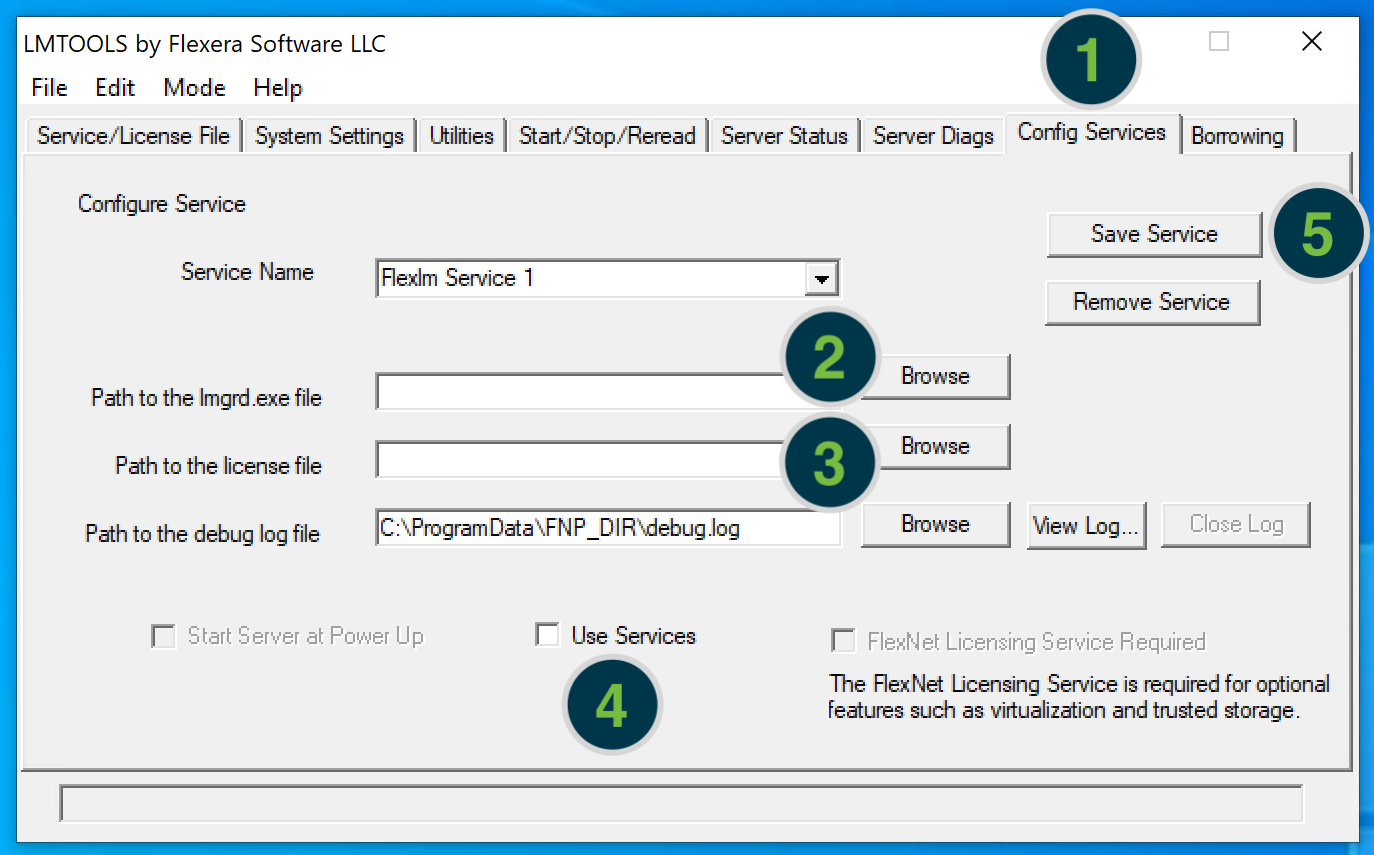
-
Select the Start/Stop/Reread tab.
-
Select the Force Server Shutdown checkbox to ensure that the license server will shut down when you click Stop Server. Before starting the license server, you can click Stop Server to ensure that the service is not already running. The
lmrereadutility causes the license daemon to reread the license file and start any new vendor daemons that have been added. Additionally, all running daemons also reread the license file for changes in feature licensing information. -
Click Start Server to start the License Server.
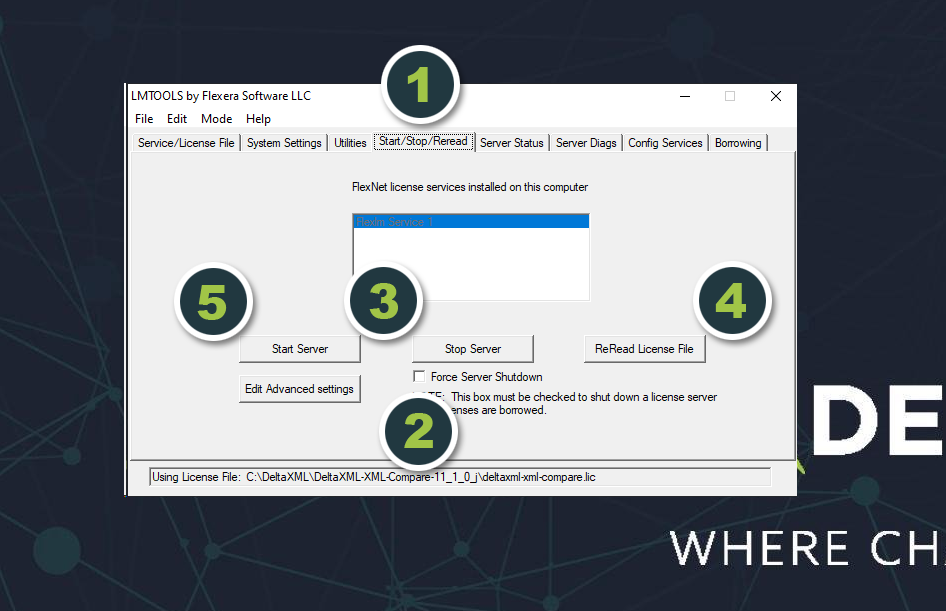
Checking that the License Server is running
-
Select the Server Status tab.
-
Click Perform Status Enquiry to provide a current status readout of the license server.
-
Check for errors. If successful, the report reads as shown in the following screen, indicating the number of licenses issued and currently in use.
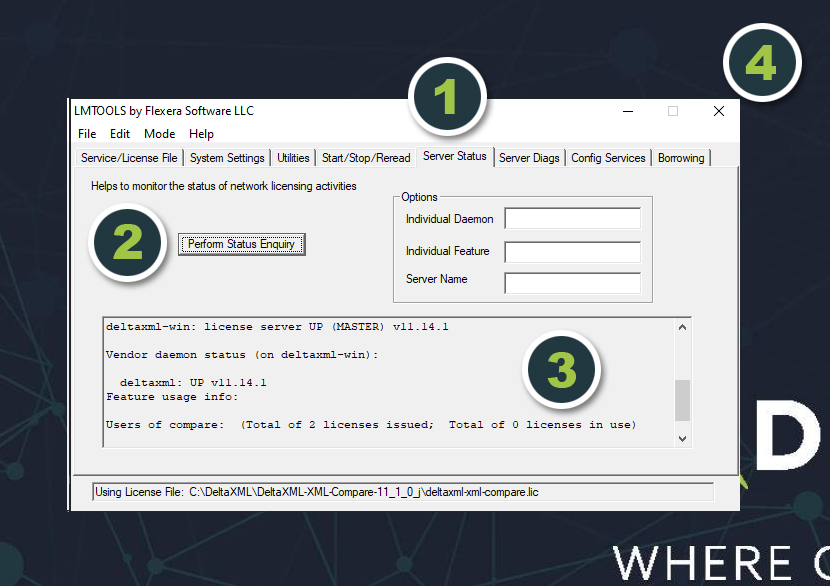
To set up the client to use a concurrent (network) license server hosted on a different machine, follow the steps here: How to Set Up Clients to Use a Concurrent (Network) License Server.