
Using the License Manager to View and Activate your licenses
To view, activate and download your licence for use, follow these steps.
Viewing Purchases
-
On the MyDelta left navigation panel, click License Manager. A table of all purchases available for you appears. You can expand each item to display the individual line items underneath each purchase.
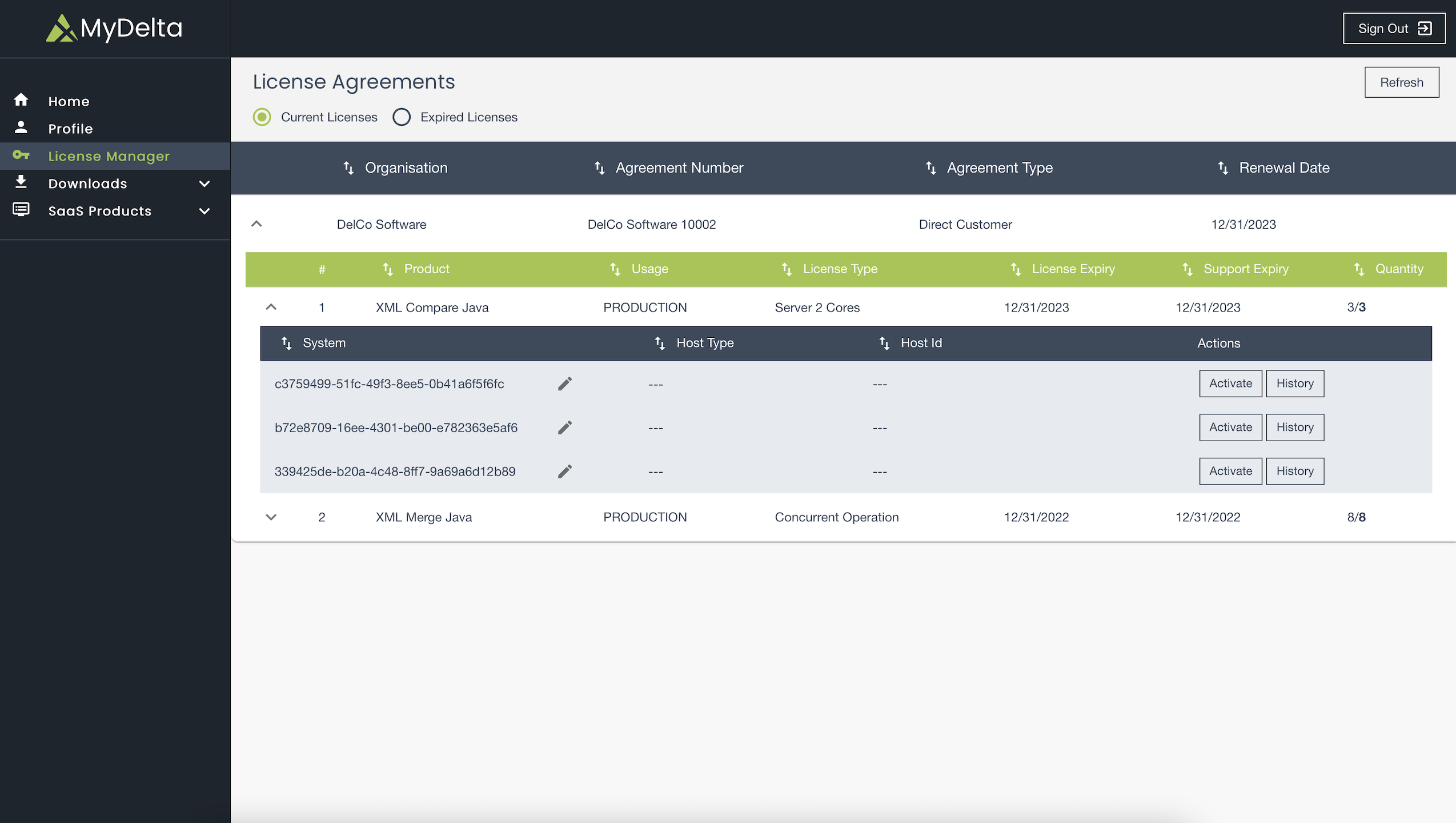
If you have made a purchase but cannot see anything on this page, you need to be assigned as a technical contact for the purchase. If this is the case, contact us through our support portal with your purchase information and invoice.
Activating Your System
-
On your list of purchased products, click on a system. Each system corresponds to a license, and must be activated to associate it with a
hostidsuch as a hostname or IP address, before license files can be generated and downloaded. -
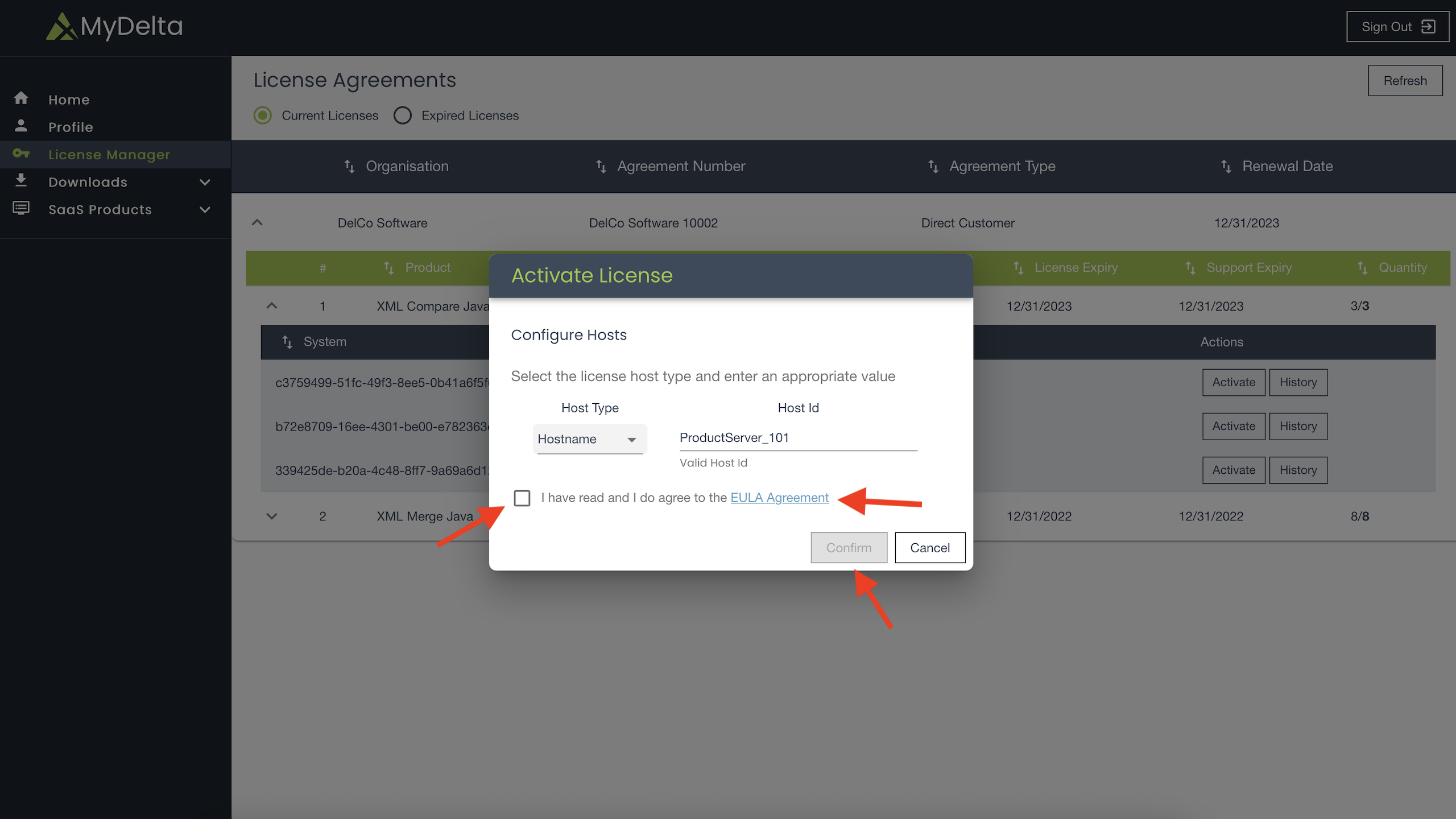
To activate the license click on Activate button which will open Activate License dialog box.
-
In the Activate License dialog box, select the I have read and I do agree to the EULA Agreement checkbox. Before activating the system, you or your administrator must accept the EULA (End User License Agreement). This is required to activate any system on your recent purchase for the first time. This is a one-time operation, unless there is an update to our End User License Agreement (EULA).
-
Click the EULA Agreement link. The Confirm button to activate the system is not enabled until you agree to accept the EULA.
-
From the Host Type dropdown list, select a type.
-
Type the
hostid.
-
Click Confirm. The license will now be activated and you can follow the next steps to download your license.
Downloading Your License
Once you activate the system, your license is ready to download. Click Download for the file to start downloading.
Viewing System History
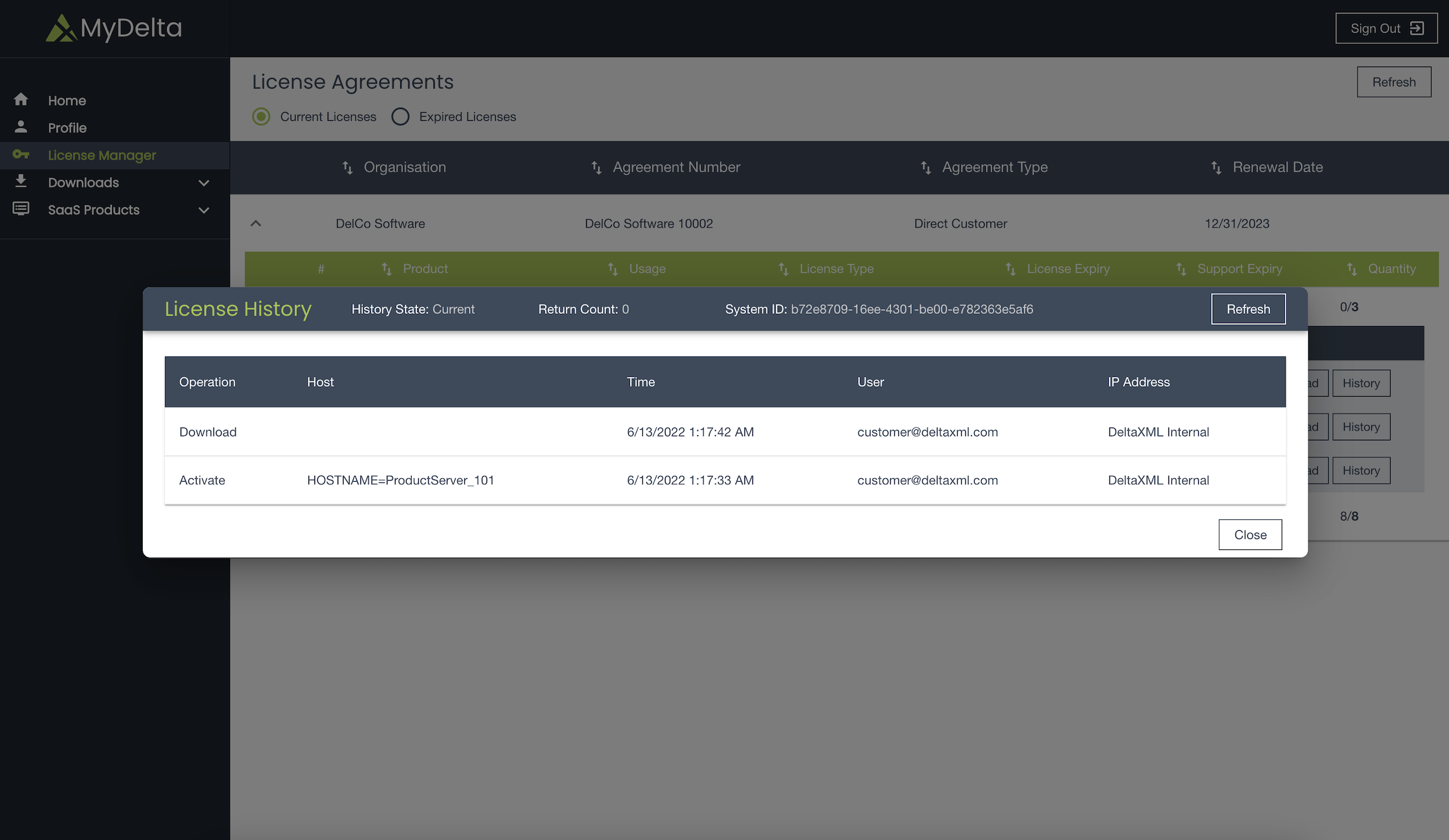
Your actions and others are visible in the system history. Click History to see all the Activation, Download and Return actions performed on the selected system.
Viewing Current or Expired Purchase Information
To keep track of your purchase history, navigate to MyDelta’s License Manager page. In the upper left corner, select either the Current and Expired licenses radio button to show the list of licenses by purchase status.