
DeltaNova Word Comparison
DeltaNova Word Compare is a tool to compare Microsoft Word documents that are saved with a .docx file extension, technically known as Office Open XML (OOXML) format documents.
OOXML documents are the native format of Microsoft Word, but can also be written and read by other commercial and free office software applications such as Libre Office, Open Office, and WP Office.
DeltaNova Word Compare takes two input documents, compares the contents, and produces an output result which is a valid .docx document containing the differences between the input documents stored in revision tracking format.
Benefits
The benefits of this approach are as follows.
-
The output comparison result document can be opened in Microsoft Word (and other Word processing applications) and displays the changes using the applications native track changes views.
-
Changes can be resolved by the user accepting or rejecting every individual change, or all changes at once, using for example Microsoft Word, to produce a resolved document.
-
The comparison result document remains a valid document which can be further edited, or the user can choose to manually edit in combination with accept or reject changes to resolve parts of either the A or B (or both) documents they wish to keep.
Advantages of DeltaNova Word Compare
The advantages DeltaNova Word Compare offers compared to the comparison function built into MS Word GUI can be summarized as follows.
-
Can be integrated into any workflow or toolchain via Java/REST/command-line API options.
-
Option of orderless row/column table comparison makes table content change easier to spot.
-
Table changes can be more intuitive to read and less cluttered.
-
Certain change combinations (move with format change) easier to understand.
-
Change author per change type allows fine grained filtering on type of change.
See the examples section below for detailed result examples of how the DeltaNova Word Compare result improves on Microsoft Word GUI comparison.
Comparison Capabilities
Supported Items
The current scope is to compare the following parts of a document.
-
Document body
-
Added, deleted and modified text at word-by-word level.
-
Moved Paragraphs.
-
Tables.
-
Text and paragraph add and delete within cells.
-
Text formatting within cells.
-
Row add and delete.
-
Column add and delete.
-
-
Inline text format changes: bold, italic, underline, strikethrough, subscript, superscript.
-
Images, drawings: add, delete, modification.
-
List type changes (numbered or bulleted).
-
-
Headers and footers
-
Added and deleted headers, footers, footnotes, and endnotes.
-
Content of headers, footers, footnotes, endnotes.
-
Unsupported Items & Limitations
The comparison does not support showing the changes to the following parts. Where changes to any of the following parts occur, the comparison result document shows the B input document content for these cases.
-
Hyperlinks
-
List styles
-
Custom and referenced styles
-
Text boxes
-
Some table properties and styles
-
Symbols, soft tabs, soft/non-breaking hyphens
-
Field code characters
-
Ruby text
-
Certain line breaks “br”, “cr”, page breaks
-
bookmarks and cross references
-
Word Art
Tables with merged cells (row or column spans) limitation: It is not possible to always be able to reject all changes, or the table may end up jagged.
Representation Strategy
DeltaNova Word Compare represents change using the OOXML revision tracking that is 100% compatible with Microsoft Word. This allows showing changes in the UI with user customisable styles and view, and the user can accept and reject individual changes or all changes.
As the docx result we output is fully compatible with multiple office applications, the comparison result can be read by other software the user may have in their workflow. It also allows users to continue manually editing the result if they wish without needing to parse or understand another format.
DeltaNova outputs a complete, valid docx document in a zipped folder that contains multiple XML files which we process.
DeltaNova Word Compare uses the following distinct names for each type of change.
|
Change Type |
Name |
|---|---|
|
Any Addition (of text, format, table, header etc) |
DX Addition |
|
Any Deletion |
DX Deletion |
|
Any Modification of existing content |
DX Modification |
|
A moved paragraph |
DX Move |
This is done by using author names, and allows fine-grained filtering in the UI to show specific types of change or only one type of change.
Examples
Identify Type of Change for Clarity
DeltaNova Word Compare displays the changes using a different user name for each type of change. This adds clarity to the type of change. For a comparison, it is useful to label as addition, deletion, or modification, because it enables you to customise the display colours of each type of change, and also to filter by change type.
Example
This example of overlapping text formatting change illustrates the types of change highlighted.

DeltaNova Word Compare gives the following result. Note the different names and highlight colours for each type of change.

If you filter out all changes except deletions, you can see the following view of the result.

MS Compare result does not allow such fine-grained filtering of change type.

Ordered or Orderless Table Column Option
A configuration option ia available to compare table columns as either ordered (default) or orderless.
Example
These two tables have two columns swapped, and a single element in one of the moved columns has modified text.
Inputs


Ordered Column Comparison Result
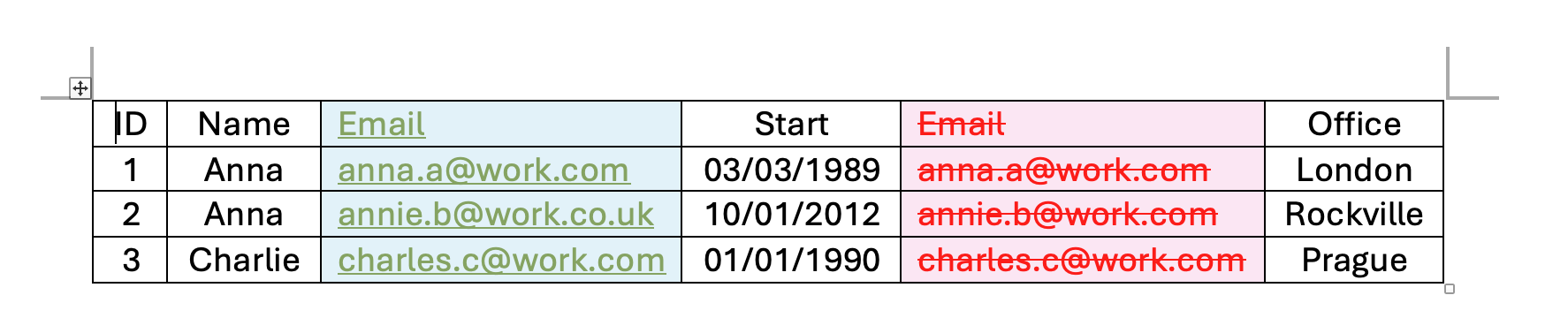
With ordered comparison, the the order of the columns is treated as important so the entire column addition and deletion are shown.
Orderless Column Comparison Result

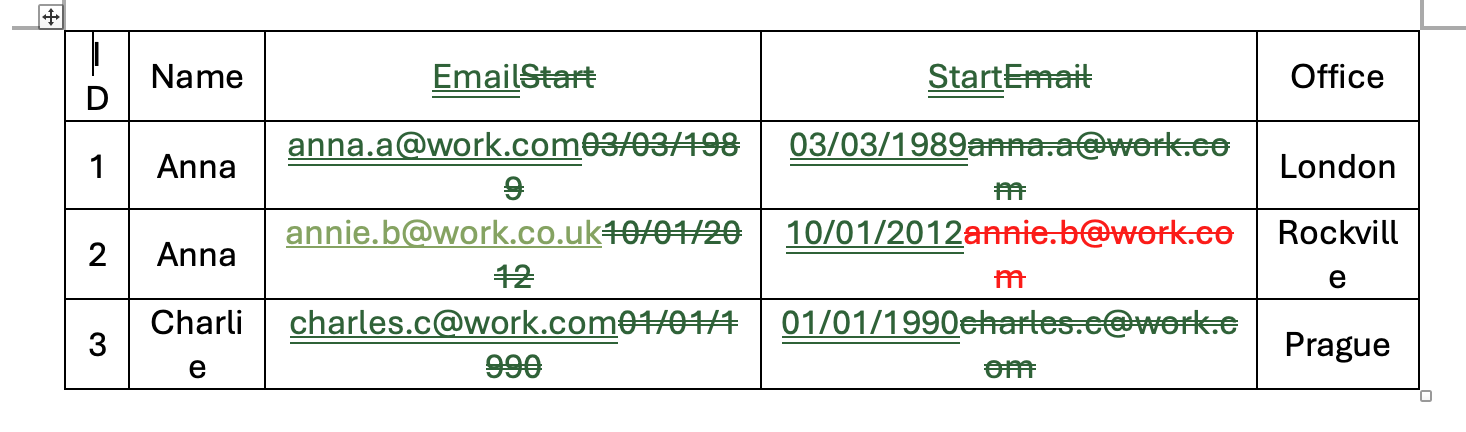
With orderless column comparison, the order of the columns is ignored, which lets you focus on what cell content has changed. In this example with orderless mode, it is much easier to spot the difference in the single email change. Also note how only the part of the email that has changed is visible, rather than the entire cell text.
Microsoft Word Compare Result
Compare the above with Miscrosoft Word compare result, where it is harder to spot what has changed.
Ordered or Orderless Table Rows Option
DeltaNova Word Compare provides a configuration option to compare table rows as either ordered (default) or orderless. Microsoft Word compare only does ordered comparison of tables, so with a lot of changes, the result may look cluttered.
Example
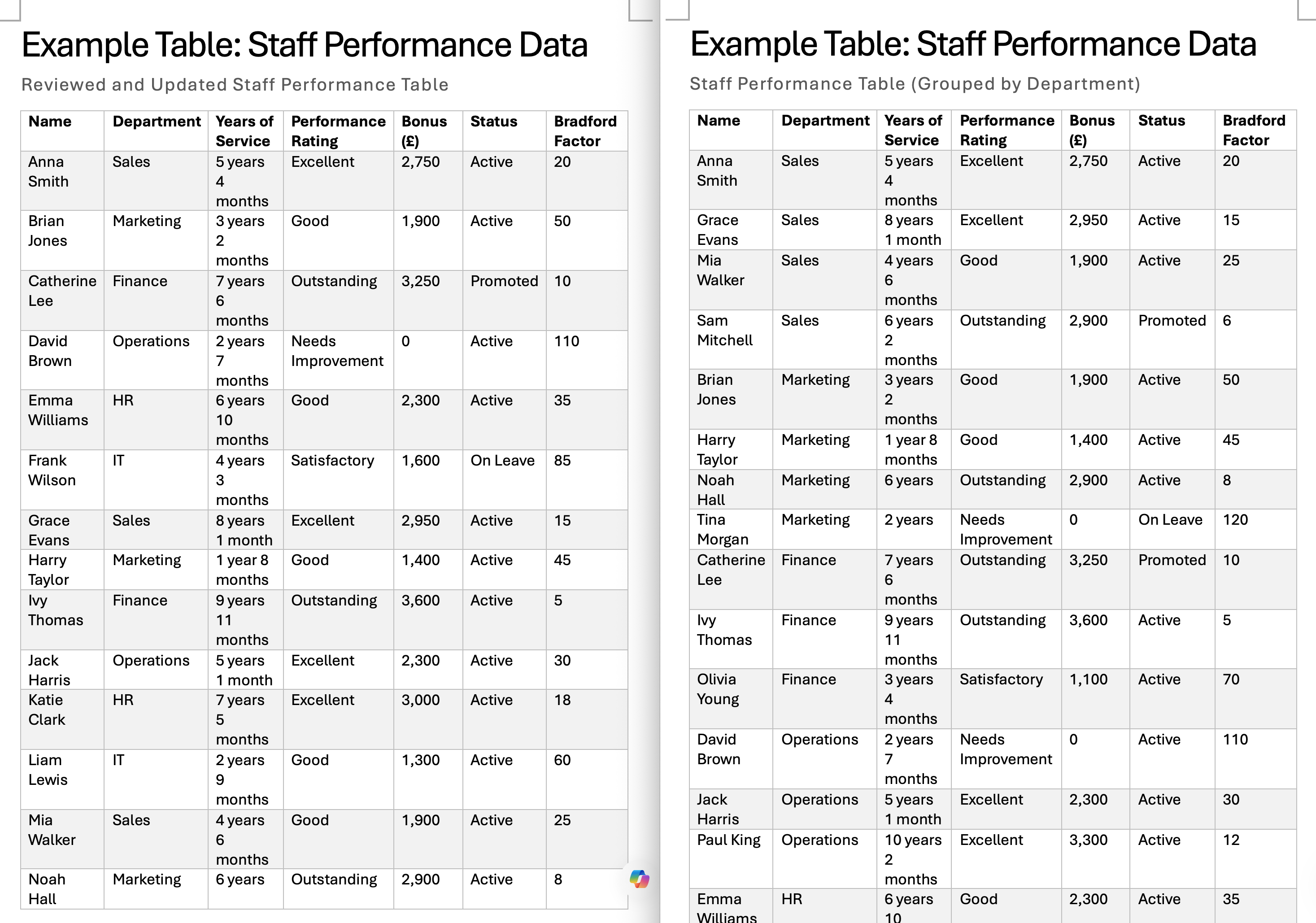
In this example the only change is that all rows have been reordered to sort by “Department“ column (first page of a long table shown).
Ordered Row Result
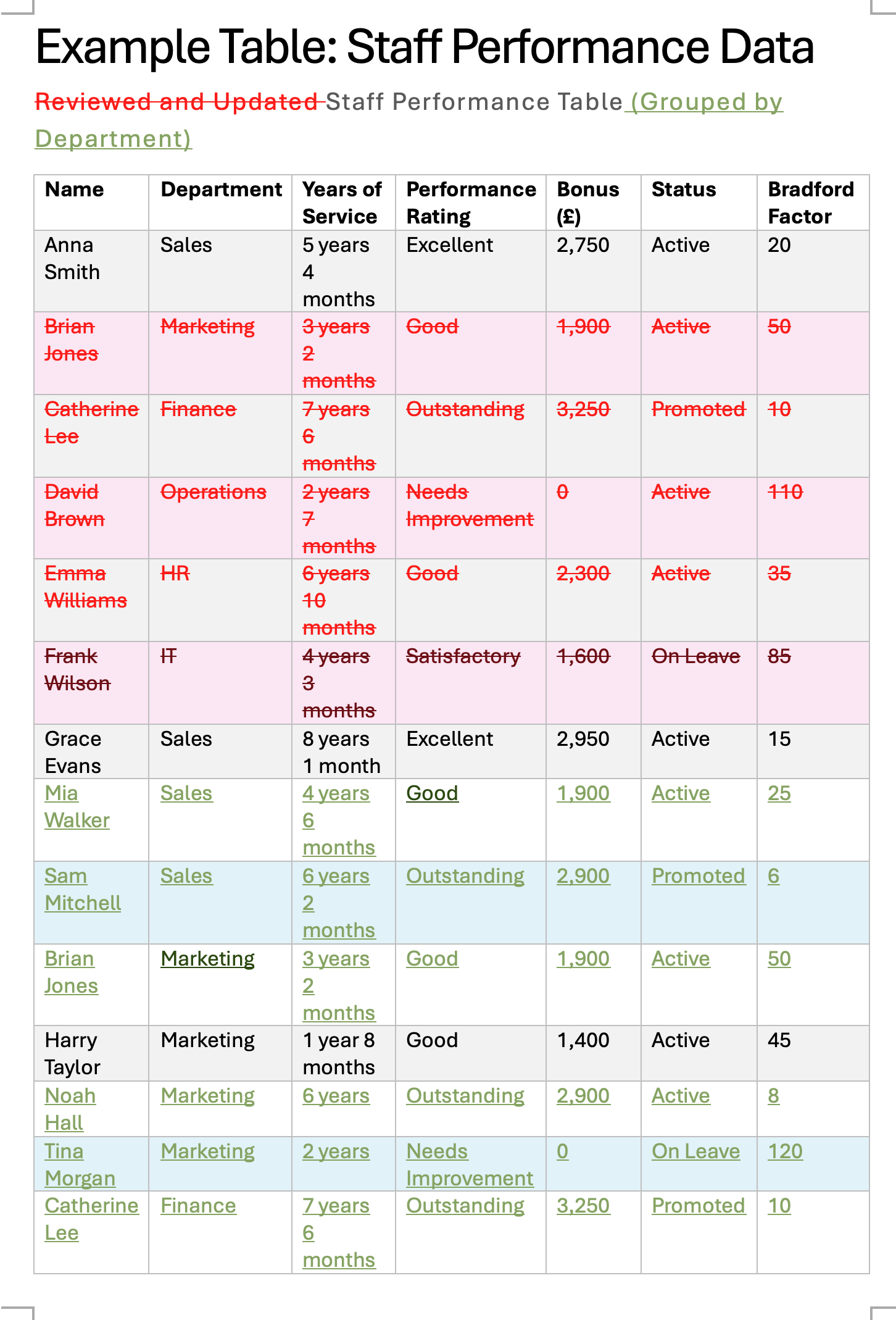
With ordered row comparison - the only option with Microsoft Word comparison - row order is taken into account and we get the result table above.
Orderless Row Result
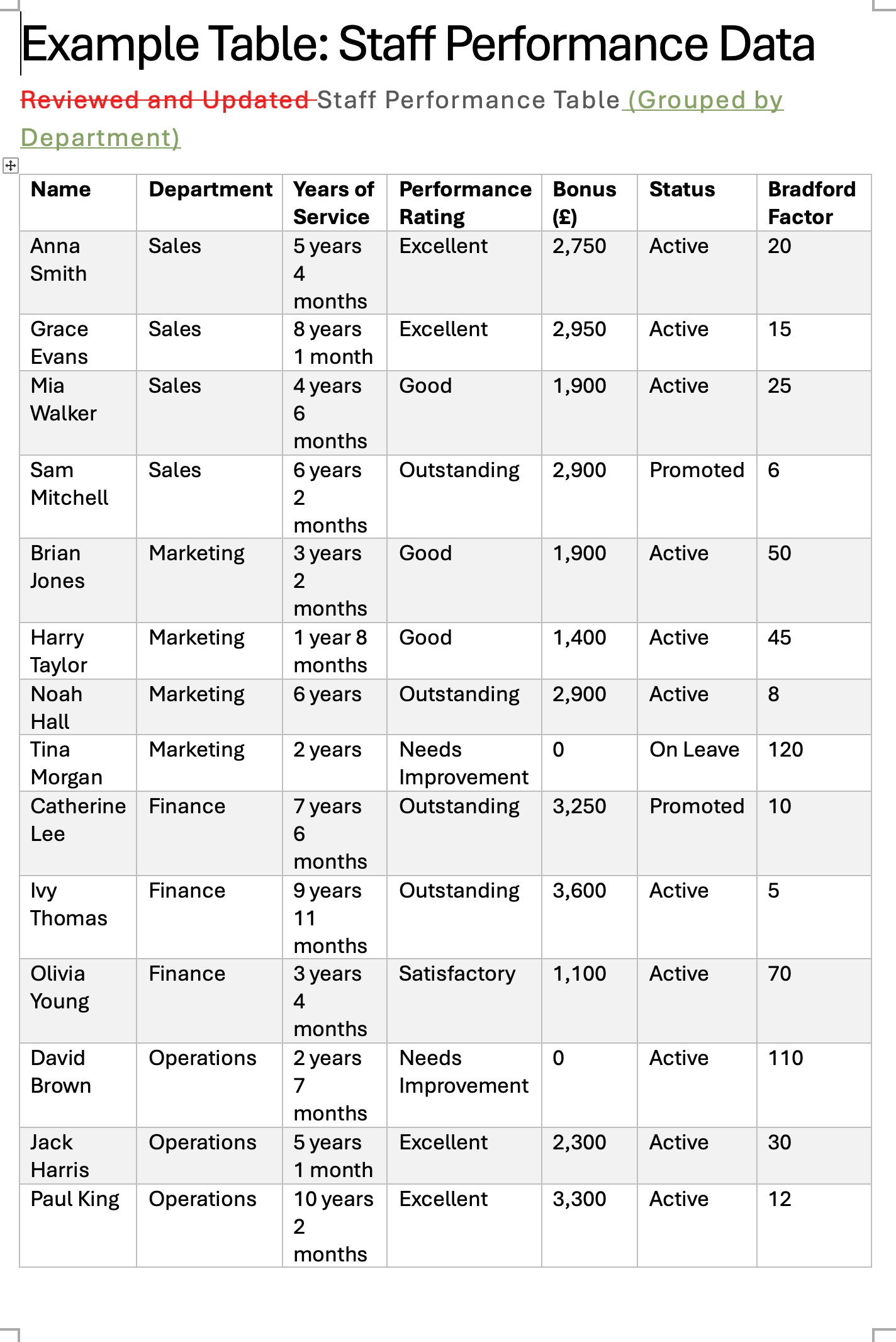
With orderless row comparison, the order of the rows is ignored, and only cell content change is shown. In this example, you can see that there was no actual cell content change within the table, only position change.
Complex Table Changes
When entire rows and/or columns are added and deleted, DeltaNova Word Compare shows the entire addition and deletion, whereas Microsoft Word compare shows every cell change in place. The DeltaNova Compare makes complex table content change patterns easier to understand.
Example
Note: This is an optional example - decide if it is suitable or not?
When Microsoft Word opens DeltaNova result, it claims it needs repairing, but then opens and accept/reject all changes, and produces the correct final/original table.
If we do use this, we should recommend accepting all changes or rejecting all changes, and not trying to pick and choose!
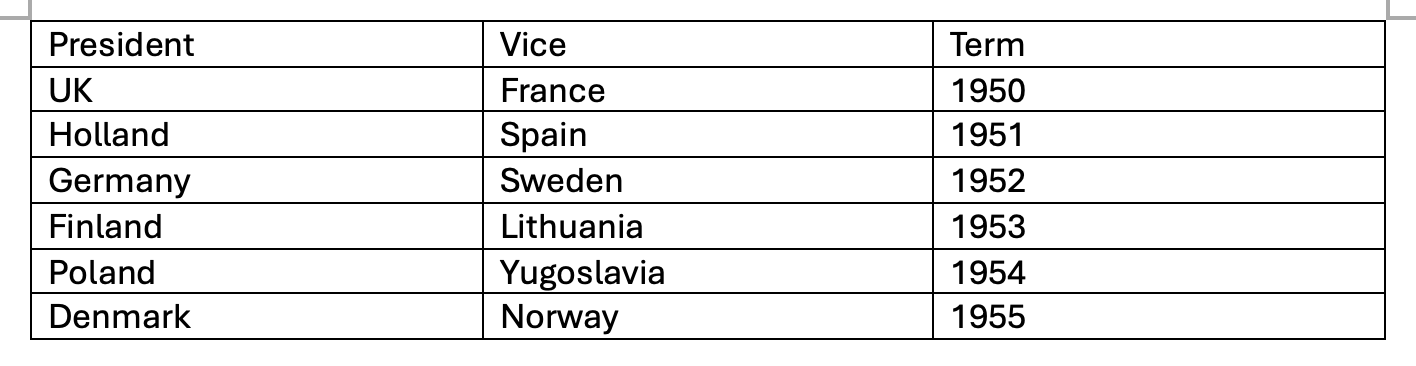
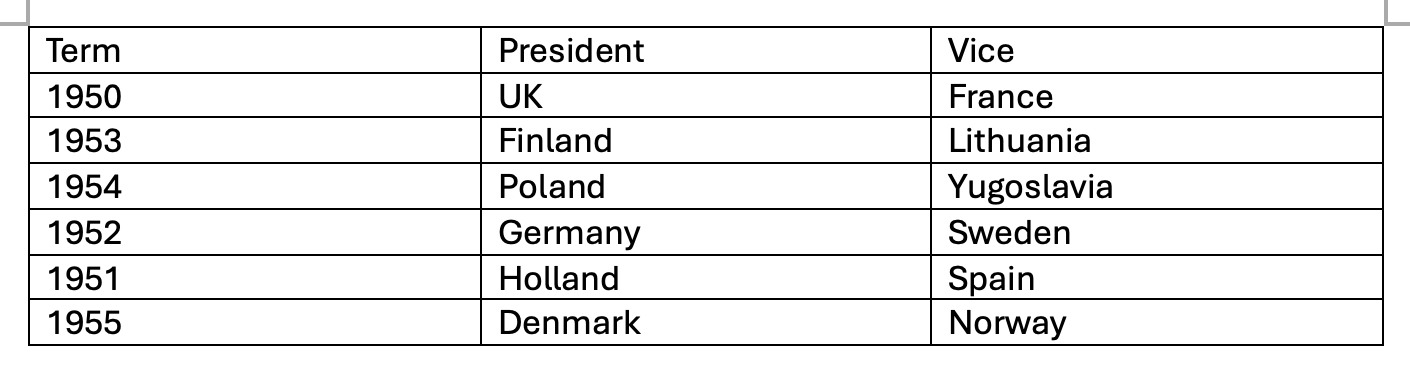
This is an example of multiple changes which are easier to understand with Word Compare.
Input “Original”
Input Final Version
DeltaNova Word Compare Result
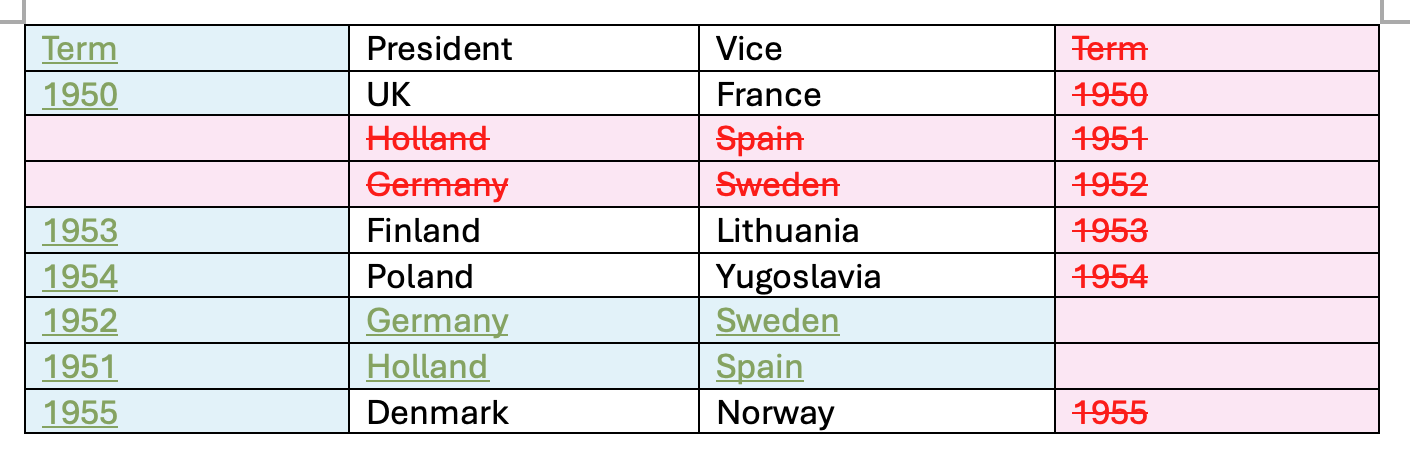
The DeltaNova Compare result clearly shows the pattern of the changes that were made. The last column has become the first column, and the rows were reordered. Notice how for example 1952 belongs to the Germany row and has moved from an upper right cell position to a lower left position.
Microsoft Word Compare Result
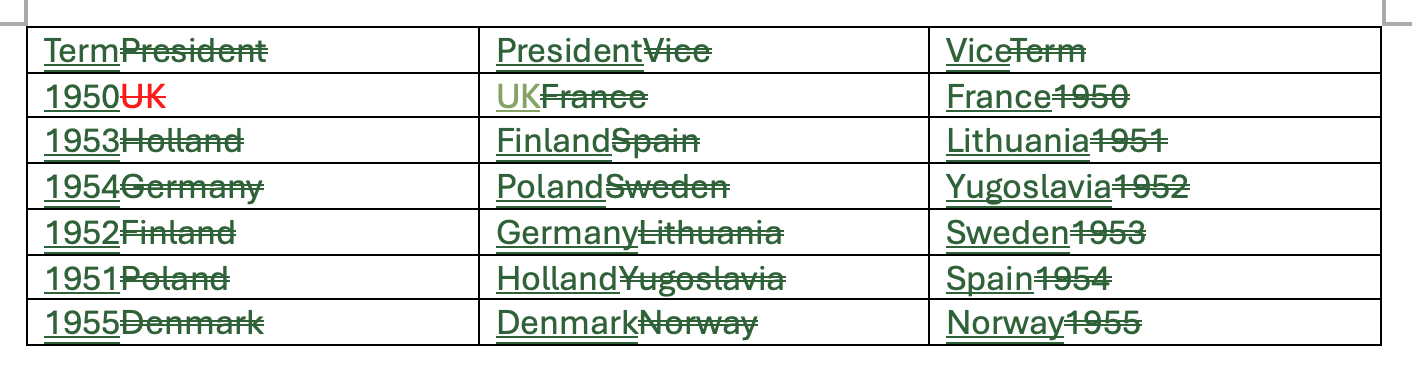
Notice how the Microsoft Word result simply shows all cell changes in place. This display gives little to no insight into the pattern of what changes were made.
Header/Footer Odd/Even Page
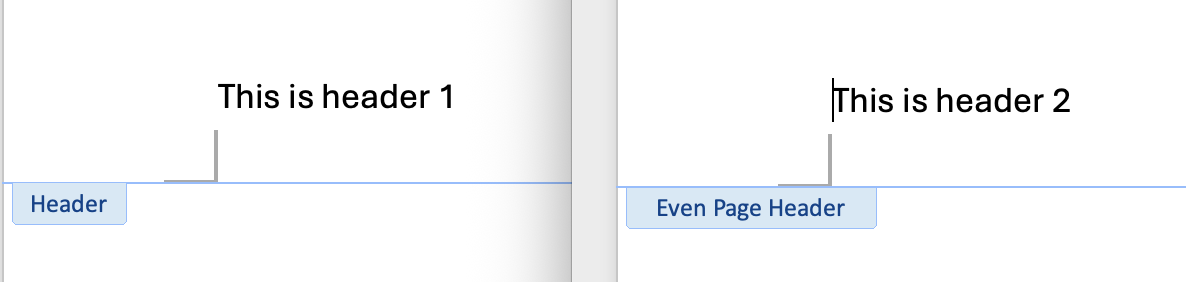
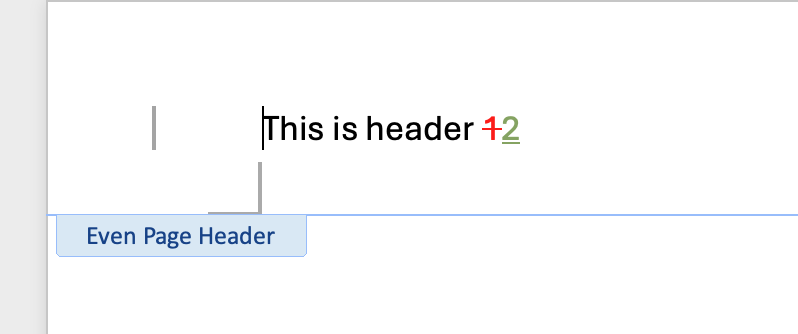
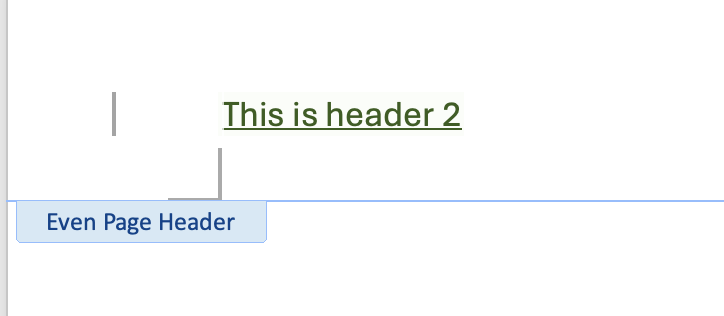
When an even page header is added, DeltaNova Compare shows the deletion and addition at word level. Microsoft Word comparison only shows an addition.
Example
This is page two header on a document where the user has added an even page header and edited its content. Page two before (Input A) and Page two after (Input B) are shown.
DeltaNova Word Compare result shows the edit with a deletion of “1” and addition of “2”.
Compared to Microsoft Word result which only shows an addition.
Moved Paragraph With Formatting
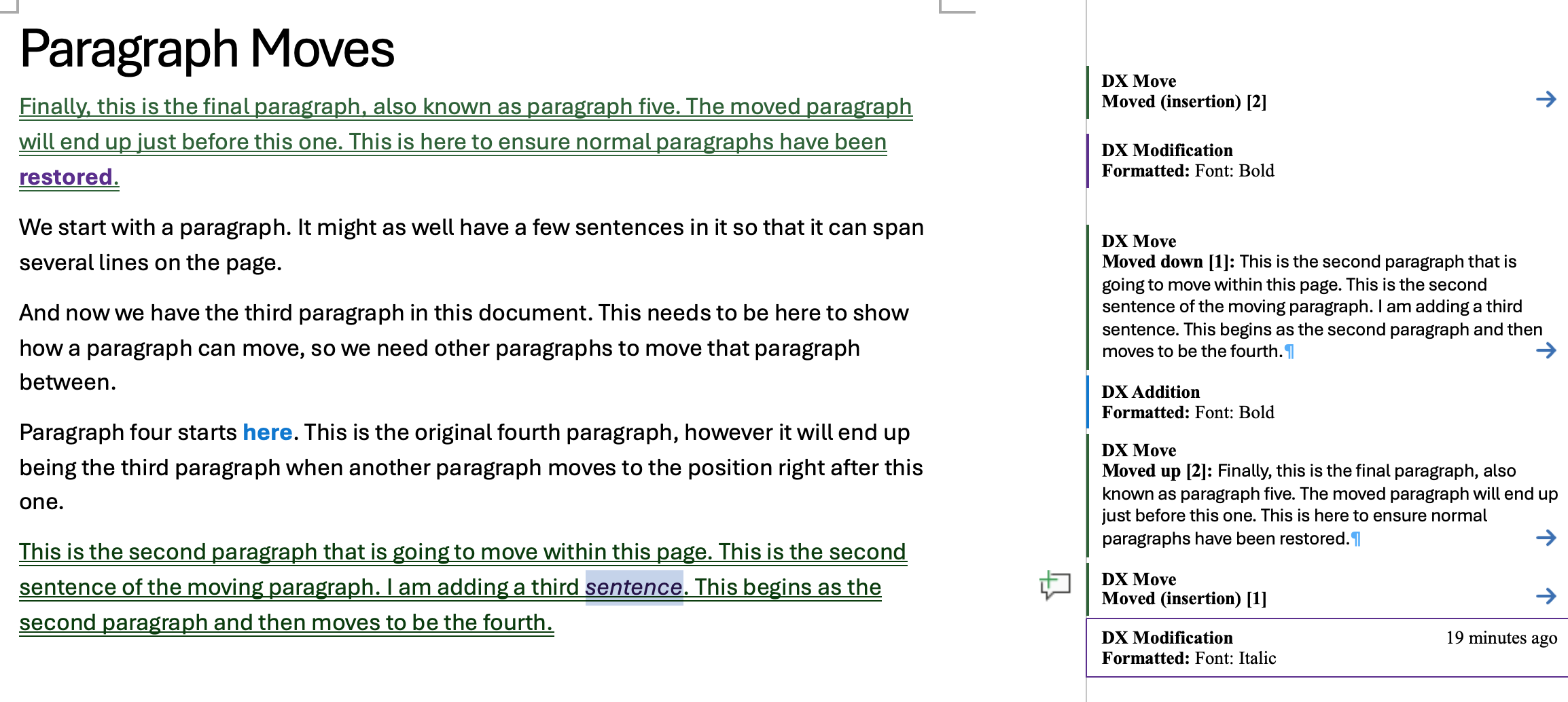
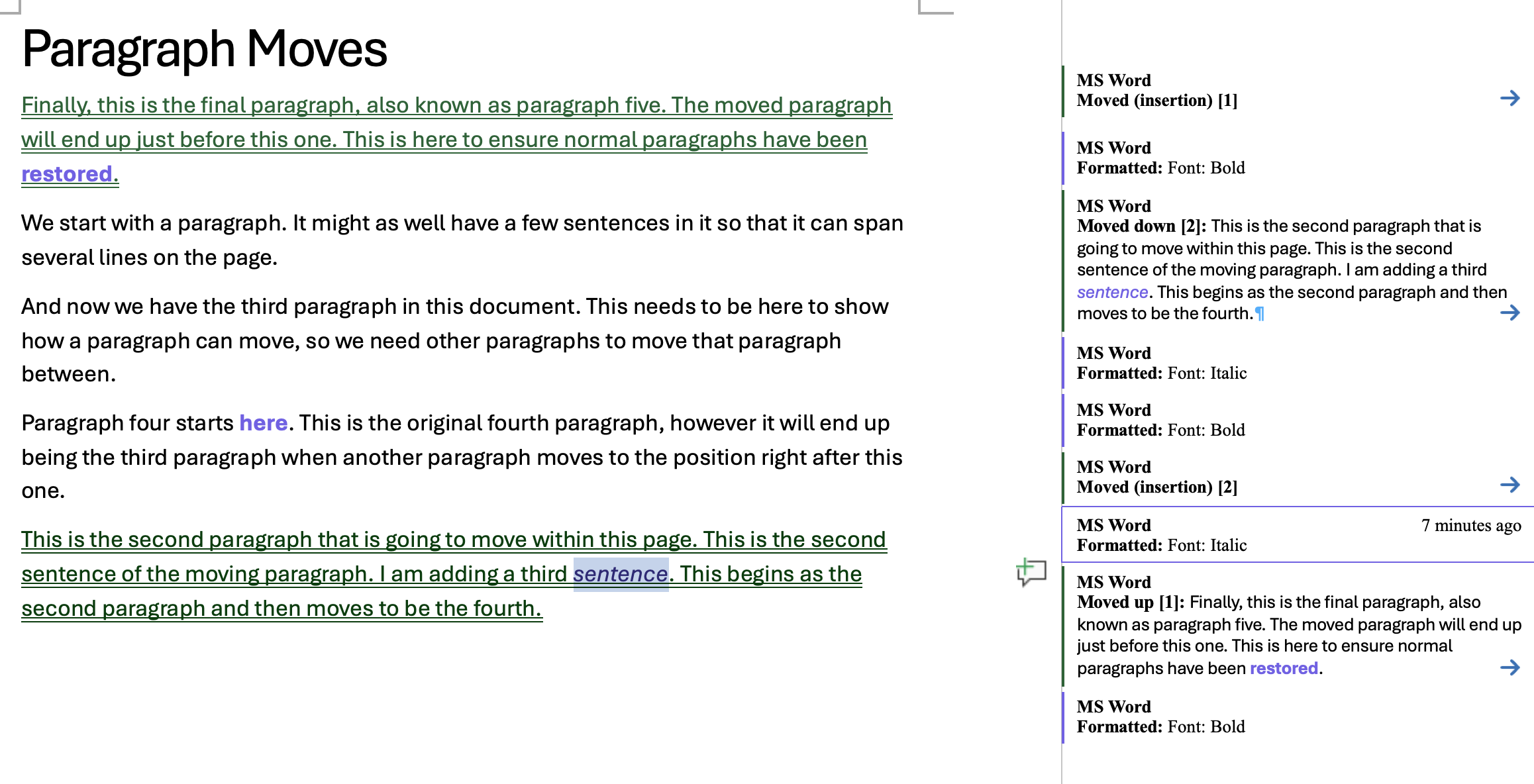
Microsoft Word compare gives a confusing view when there is formatted text inside a move. DeltaNova Word Compare gives an easier to understand set of changes.
Example
In this example, two paragraphs have been moved and formatting changes have been made to text both within the moves and outside of any move.
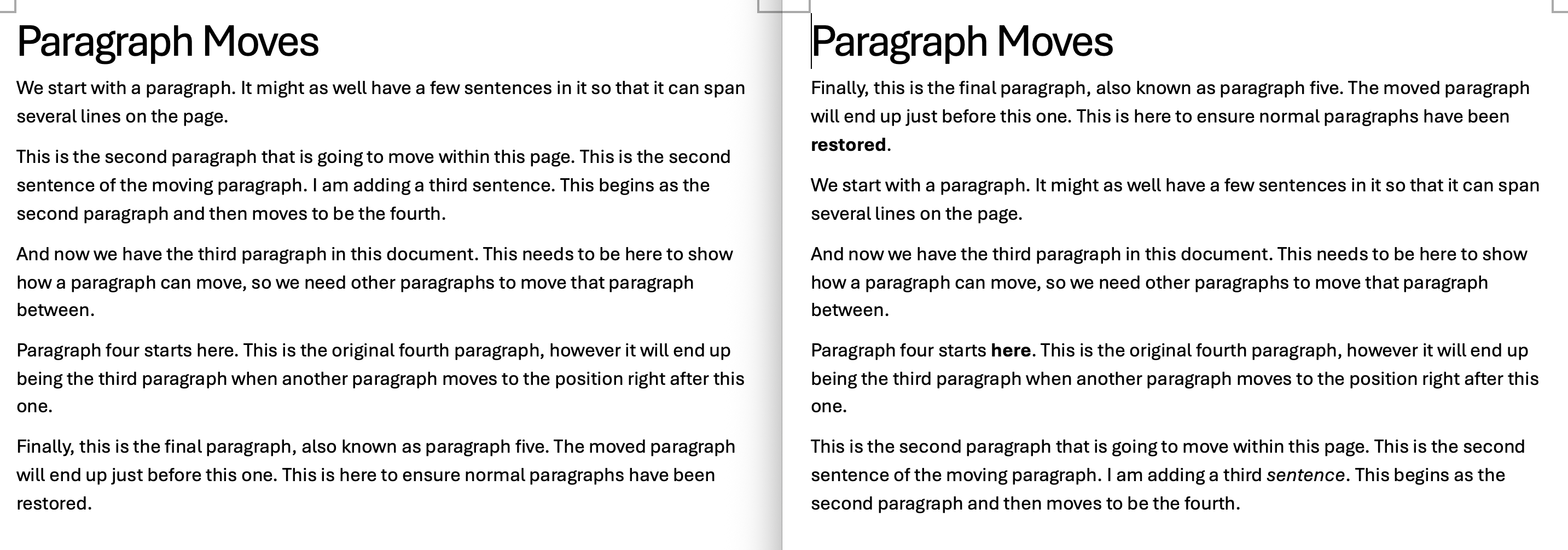
The DeltaNova Word Compare result shows the italic format of the word sentence once, and it can be accepted or rejected where it is.
The Microsoft Word result shows multiple formats of the same word, which is confusing and not really useful. Note the two format changes for the bold and italic changes within the moved paragraphs.
API Overview
DeltaNova provides the following APIs to for integration.
Future Enhancements
Comparison of the following features of a document are planned as future enhancements.
Block level elements (any reference eg styles, block, text box, list etc.)
Styling - Headings, borders, colours, shapes and positions
Improved Complex Tables Functionality
Advanced table row and column spanning while keeping compatible with accept and reject.