
SVG Comparison
This section explains the concepts behind SVG comparison using samples. You can find sample resources and a description on how to run it here.
DeltaNova Compare SVG Comparison is an XML-based SVG comparison.
The main features are:
-
Inline, Referenced, and Standalone SVG image comparison.
-
Different granularity levels:
-
ADJACENT- Reports differences in the SVG by displaying A and B inputs adjacent to each other. -
DETAILED_ADJACENT- Reports differences in the SVG by displaying the A and B inputs adjacent to each other with individual changes highlighted using bounding boxes. -
ANIMATE_INLINE- Reports SVG differences by animating them to fade inputs in and out using a change to the opacity from 1 to 0 for delete and 0 to 1 for add.
-
-
Z-Index change - Differentiation in the representation of Z-index change/moved elements.
-
Numeric Tolerance - Coordinate change smaller than a specified percentage/size can be ignored.
-
Fallback - When change is above a percentage threshold,
DETAILED_ADJACENTcomparisons falls back toADJACENTgranularity. -
Customizable fallback percentage threshold.
-
User-defined style for change representation.
How It Works
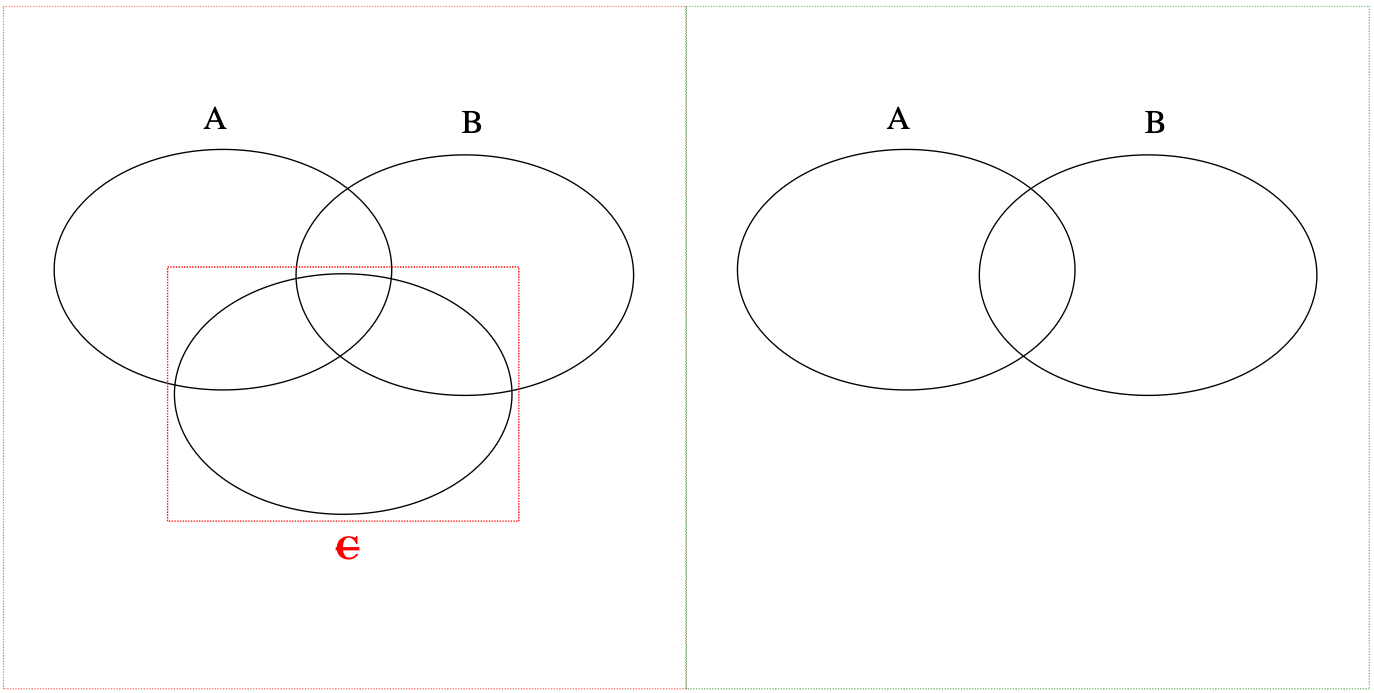
Using DeltaNova's SVG comparison, by default users will get an output showing the A & B SVGs side by side with added <rect> elements creating bounding boxes to highlight change. The added <rect> elements include a deltaxml:svgBoundingBoxId to distinguish the additional change markup elements from original elements.
SVG comparison is enabled by default.
Based on test results, Google Chrome and Safari browsers are best for rendering compared SVGs. Firefox is also suitable for rendering, however may show results differently.
See the DCP Schema Guide and Javadoc for details of SVG comparison configuration options.
Example 1: Inline, Referenced, and Standalone SVG images
DeltaNova Compare distinguishes SVG comparisons between inline, referenced, and standalone SVG images.
-
Inline SVG: This is where the SVG itself is embedded within the file being compared.
-
Referenced SVG: This is where the SVG is stored as a separate SVG file, with file extension .svg, and referenced within the files being compared.
-
Standalone SVG: This is where a SVG file (with file extension .svg) is the input, i.e
<svg>is the root element.
Inline SVG Image
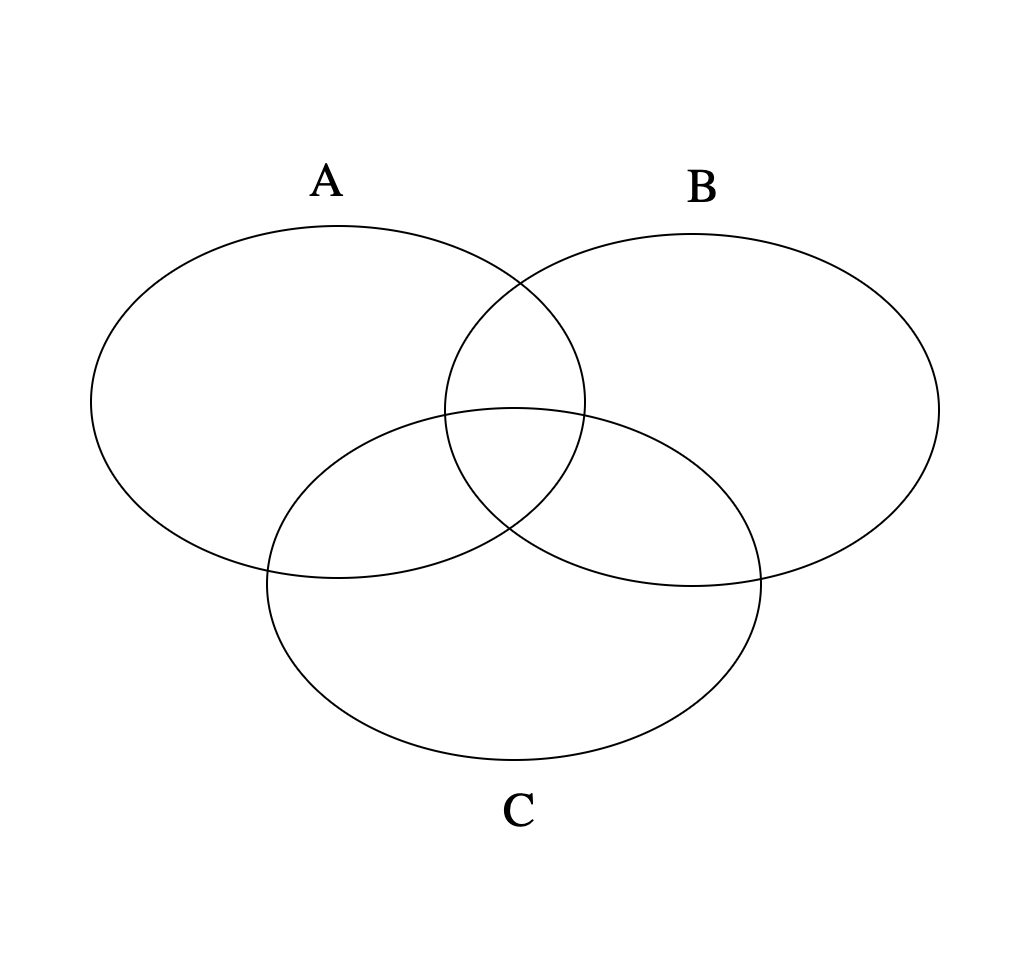
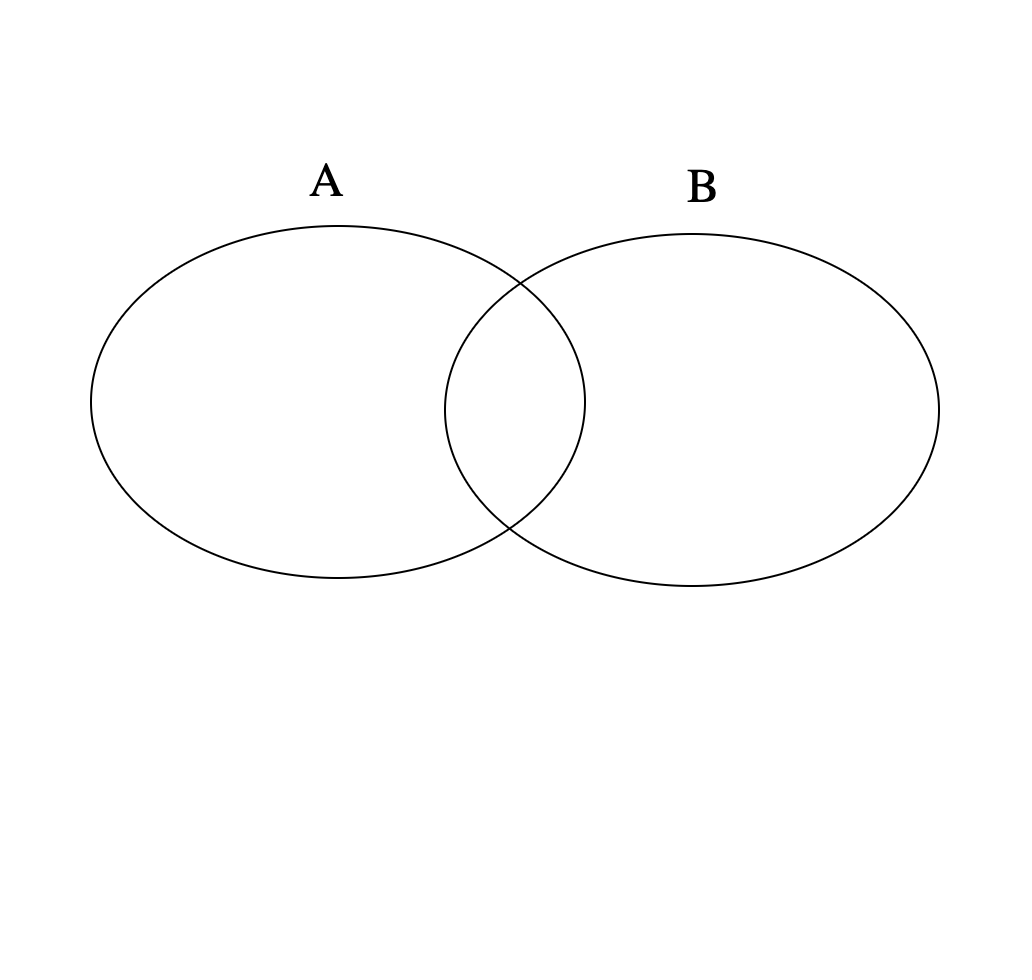
The following example shows a comparison of inline SVG images within HTML.
example1_1A.html
<?xml version="1.0" encoding="UTF-8"?>
<!DOCTYPE html>
<html lang="en" xmlns="http://www.w3.org/1999/xhtml">
    <head><title/></head>
    <body>
        <div>
            <svg width="500" height="500" xmlns="http://www.w3.org/2000/svg">
                <g>
                    <ellipse ry="88" rx="123.5" id="svg_1" cy="193" cx="161" stroke="#000" fill="none"/>
                    <ellipse ry="88" rx="123.5" id="svg_3" cy="197" cx="338" stroke="#000" fill="none"/>
                    <text xml:space="preserve" text-anchor="start" font-family="'Roboto Mono'" font-size="24" stroke-width="0" id="svg_4" y="90" x="146.5" stroke="#000" fill="#000000">A</text>
                    <text xml:space="preserve" text-anchor="start" font-family="'Roboto Mono'" font-size="24" id="svg_5" y="93" x="335.5" stroke-width="0" stroke="#000" fill="#000000">B</text>
                    <ellipse ry="88" rx="123.5" id="svg_6" cy="284" cx="249" stroke="#000" fill="none"/>
                    <text xml:space="preserve" text-anchor="start" font-family="'Roboto Mono'" font-size="24" id="svg_7" y="405" x="243.5" stroke-width="0" stroke="#000" fill="#000000">C</text>
                </g>
            </svg>
        </div>
    </body>
</html>
example1_1B.html
<?xml version="1.0" encoding="UTF-8"?>
<!DOCTYPE html>
<html lang="en" xmlns="http://www.w3.org/1999/xhtml">
    <head><title/></head>
    <body>
        <div>
            <svg width="500" height="500" xmlns="http://www.w3.org/2000/svg">
                <g>
                    <ellipse ry="88" rx="123.5" id="svg_1" cy="193" cx="161" stroke="#000" fill="none"/>
                    <ellipse ry="88" rx="123.5" id="svg_3" cy="197" cx="338" stroke="#000" fill="none"/>
                    <text xml:space="preserve" text-anchor="start" font-family="'Roboto Mono'" font-size="24" stroke-width="0" id="svg_4" y="90" x="146.5" stroke="#000" fill="#000000">A</text>
                    <text xml:space="preserve" text-anchor="start" font-family="'Roboto Mono'" font-size="24" id="svg_5" y="93" x="335.5" stroke-width="0" stroke="#000" fill="#000000">B</text>
                </g>
            </svg>
        </div>
    </body>
</html>
Inputs (Rendered HTML in Chrome)
Result (Rendered HTML in Chrome)
Referenced SVG Image
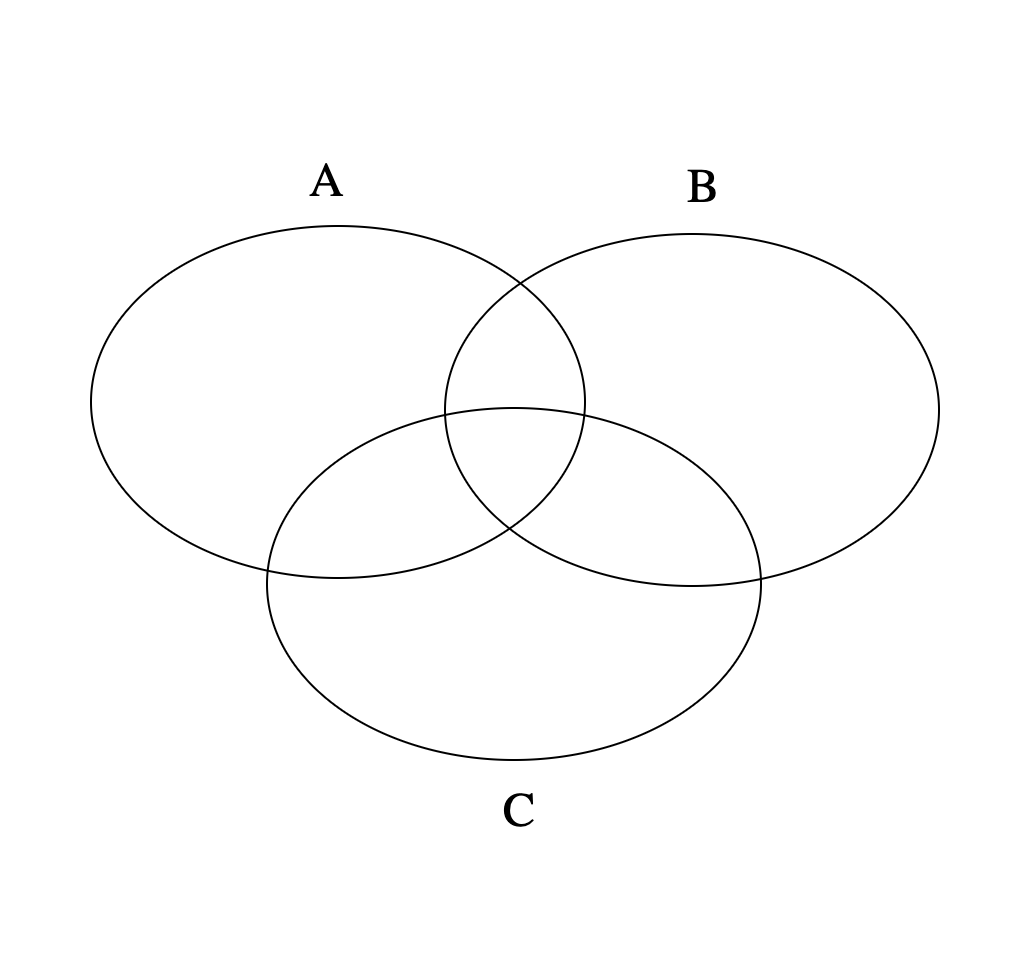
Referenced SVG Comparison is where a document contains a link to a separate file containing an SVG image. The format of the result remains as a referenced SVG pointing to a generated output SVG file in the same location as the B input source SVG file.
The following example shows a comparison of referenced SVG images within a HTML snippet.
example1_2A.html
<?xml version="1.0" encoding="UTF-8"?>
<!DOCTYPE html>
<html lang="en" xmlns="http://www.w3.org/1999/xhtml">
    <head>
        <title></title>
    </head>

    <body>
        <div>
            <img src="example1_2A.svg" />
        </div>
    </body>
</html>
example1_2A.svg
<svg width="500" height="500" xmlns="http://www.w3.org/2000/svg">
 <g>
  <ellipse ry="88" rx="123.5" id="svg_1" cy="193" cx="161" stroke="#000" fill="none"/>
  <ellipse ry="88" rx="123.5" id="svg_3" cy="197" cx="338" stroke="#000" fill="none"/>
  <text xml:space="preserve" text-anchor="start" font-family="'Roboto Mono'" font-size="24" stroke-width="0" id="svg_4" y="90" x="146.5" stroke="#000" fill="#000000">A</text>
  <text xml:space="preserve" text-anchor="start" font-family="'Roboto Mono'" font-size="24" id="svg_5" y="93" x="335.5" stroke-width="0" stroke="#000" fill="#000000">B</text>
  <ellipse ry="88" rx="123.5" id="svg_6" cy="284" cx="249" stroke="#000" fill="none"/>
  <text xml:space="preserve" text-anchor="start" font-family="'Roboto Mono'" font-size="24" id="svg_7" y="405" x="243.5" stroke-width="0" stroke="#000" fill="#000000">C</text>
 </g>
</svg>
example1_2B.html
<?xml version="1.0" encoding="UTF-8"?>
<!DOCTYPE html>
<html lang="en" xmlns="http://www.w3.org/1999/xhtml">
    <head>
        <title></title>
    </head>

    <body>
        <div>
            <img src="example1_2B.svg" />
        </div>
    </body>
</html>
example1_2B.svg
<svg width="500" height="500" xmlns="http://www.w3.org/2000/svg">
 <g>
  <ellipse ry="88" rx="123.5" id="svg_1" cy="193" cx="161" stroke="#000" fill="none"/>
  <ellipse ry="88" rx="123.5" id="svg_3" cy="197" cx="338" stroke="#000" fill="none"/>
  <text xml:space="preserve" text-anchor="start" font-family="'Roboto Mono'" font-size="24" stroke-width="0" id="svg_4" y="90" x="146.5" stroke="#000" fill="#000000">A</text>
  <text xml:space="preserve" text-anchor="start" font-family="'Roboto Mono'" font-size="24" id="svg_5" y="93" x="335.5" stroke-width="0" stroke="#000" fill="#000000">B</text>
 </g>
</svg>
Rendered HTML (in Chrome)
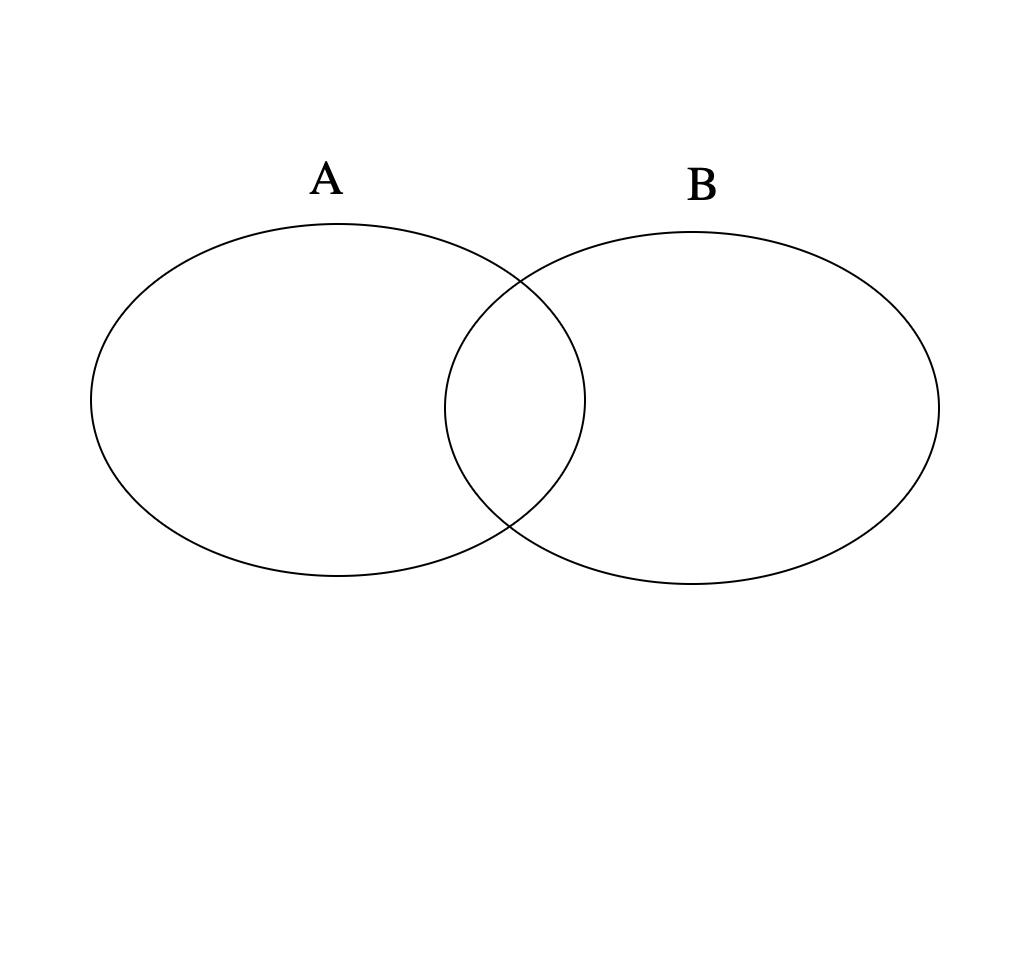
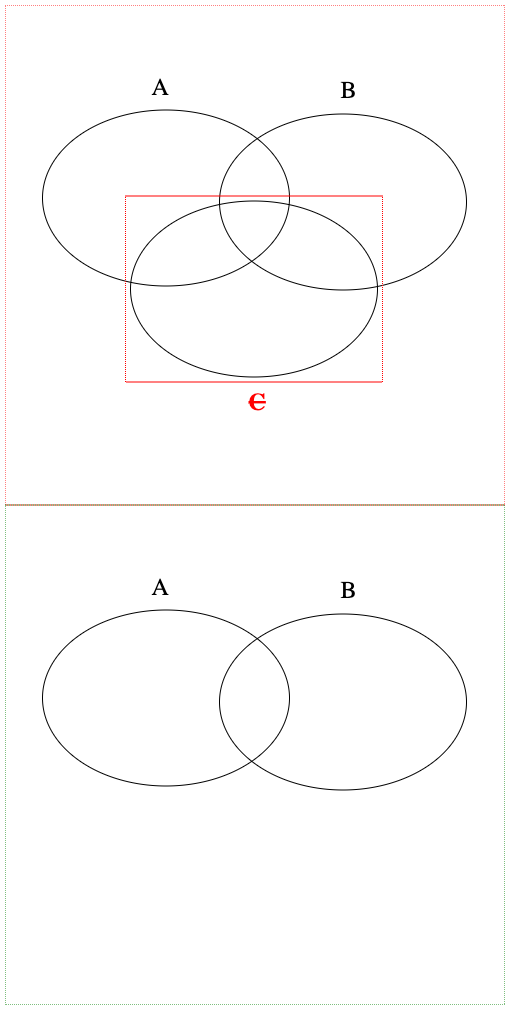
Result (Rendered HTML in Chrome)
Standalone SVG Image
Standalone SVG Comparison is where the SVG itself is the input file, i.e., <svg> is the root element. The format of the result remains as a standalone SVG and the output can be with either the .xml or .svg file extension.
The following example shows a comparison of standalone SVG images.
example1_2A.svg
<svg width="500" height="500" xmlns="http://www.w3.org/2000/svg">
 <g>
  <ellipse ry="88" rx="123.5" id="svg_1" cy="193" cx="161" stroke="#000" fill="none"/>
  <ellipse ry="88" rx="123.5" id="svg_3" cy="197" cx="338" stroke="#000" fill="none"/>
  <text xml:space="preserve" text-anchor="start" font-family="'Roboto Mono'" font-size="24" stroke-width="0" id="svg_4" y="90" x="146.5" stroke="#000" fill="#000000">A</text>
  <text xml:space="preserve" text-anchor="start" font-family="'Roboto Mono'" font-size="24" id="svg_5" y="93" x="335.5" stroke-width="0" stroke="#000" fill="#000000">B</text>
  <ellipse ry="88" rx="123.5" id="svg_6" cy="284" cx="249" stroke="#000" fill="none"/>
  <text xml:space="preserve" text-anchor="start" font-family="'Roboto Mono'" font-size="24" id="svg_7" y="405" x="243.5" stroke-width="0" stroke="#000" fill="#000000">C</text>
 </g>
</svg>
example1_2B.svg
<svg width="500" height="500" xmlns="http://www.w3.org/2000/svg">
 <g>
  <ellipse ry="88" rx="123.5" id="svg_1" cy="193" cx="161" stroke="#000" fill="none"/>
  <ellipse ry="88" rx="123.5" id="svg_3" cy="197" cx="338" stroke="#000" fill="none"/>
  <text xml:space="preserve" text-anchor="start" font-family="'Roboto Mono'" font-size="24" stroke-width="0" id="svg_4" y="90" x="146.5" stroke="#000" fill="#000000">A</text>
  <text xml:space="preserve" text-anchor="start" font-family="'Roboto Mono'" font-size="24" id="svg_5" y="93" x="335.5" stroke-width="0" stroke="#000" fill="#000000">B</text>
 </g>
</svg>
Rendered HTML (in Chrome)
Result (Rendered HTML in Chrome)
Example 2: SVG Granularity Levels
To optimize the results of SVG image comparison, we provide different granularity levels to customize outputs.
ADJACENT
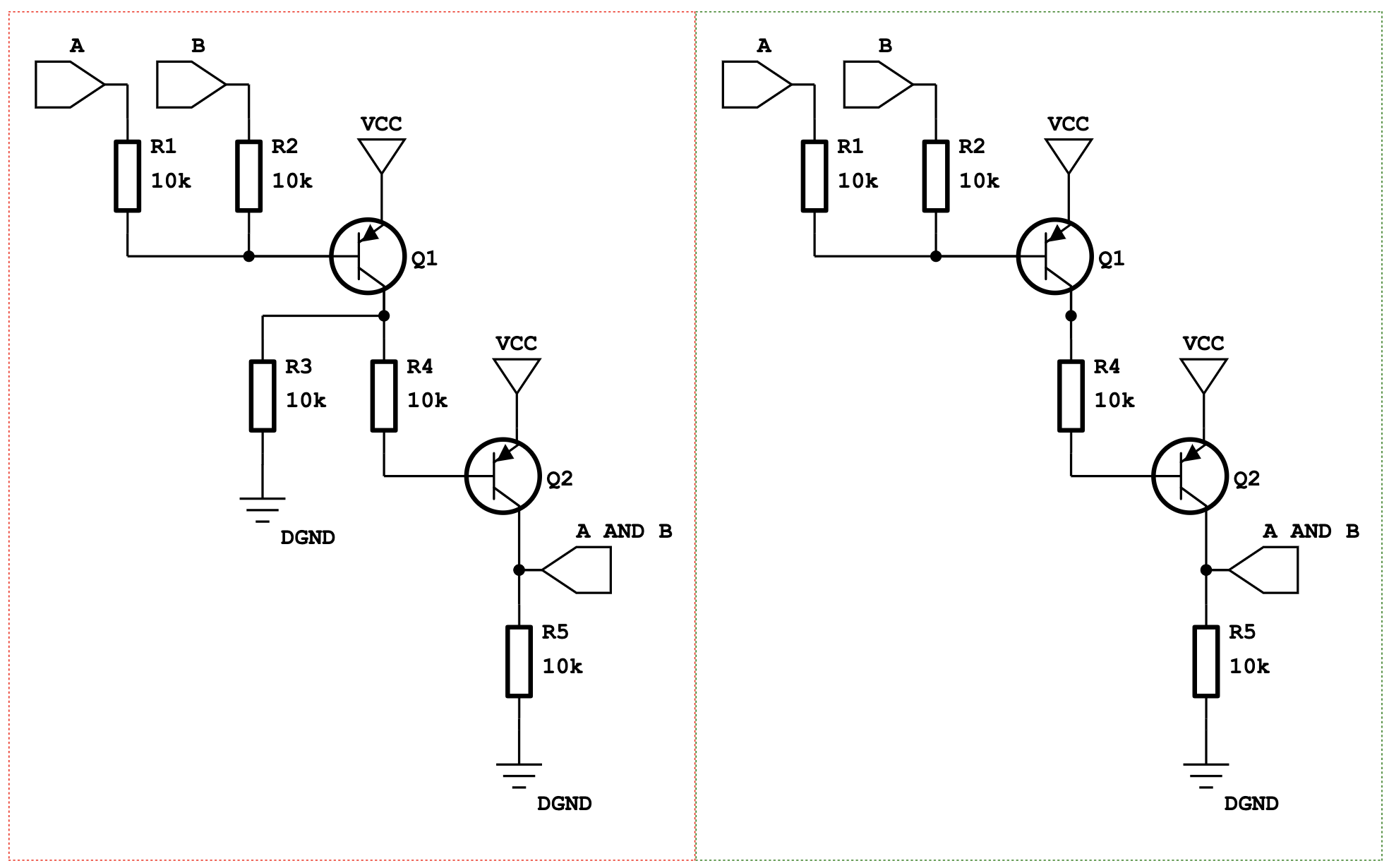
Adjacent SVG comparison is suitable for SVG images with significant changes, the result showing the A and B SVG inputs adjacent to one another. A & B inputs are highlighted by default with red and green dashed outlines respectively. However, these colors can be user-defined. Adjacent results for SVG comparisons do not include highlighted change, ensuring correctly rendered SVGs and a side-by-side display of the SVG images to view differences.
Result (Rendered HTML in Chrome)
DETAILED_ADJACENT
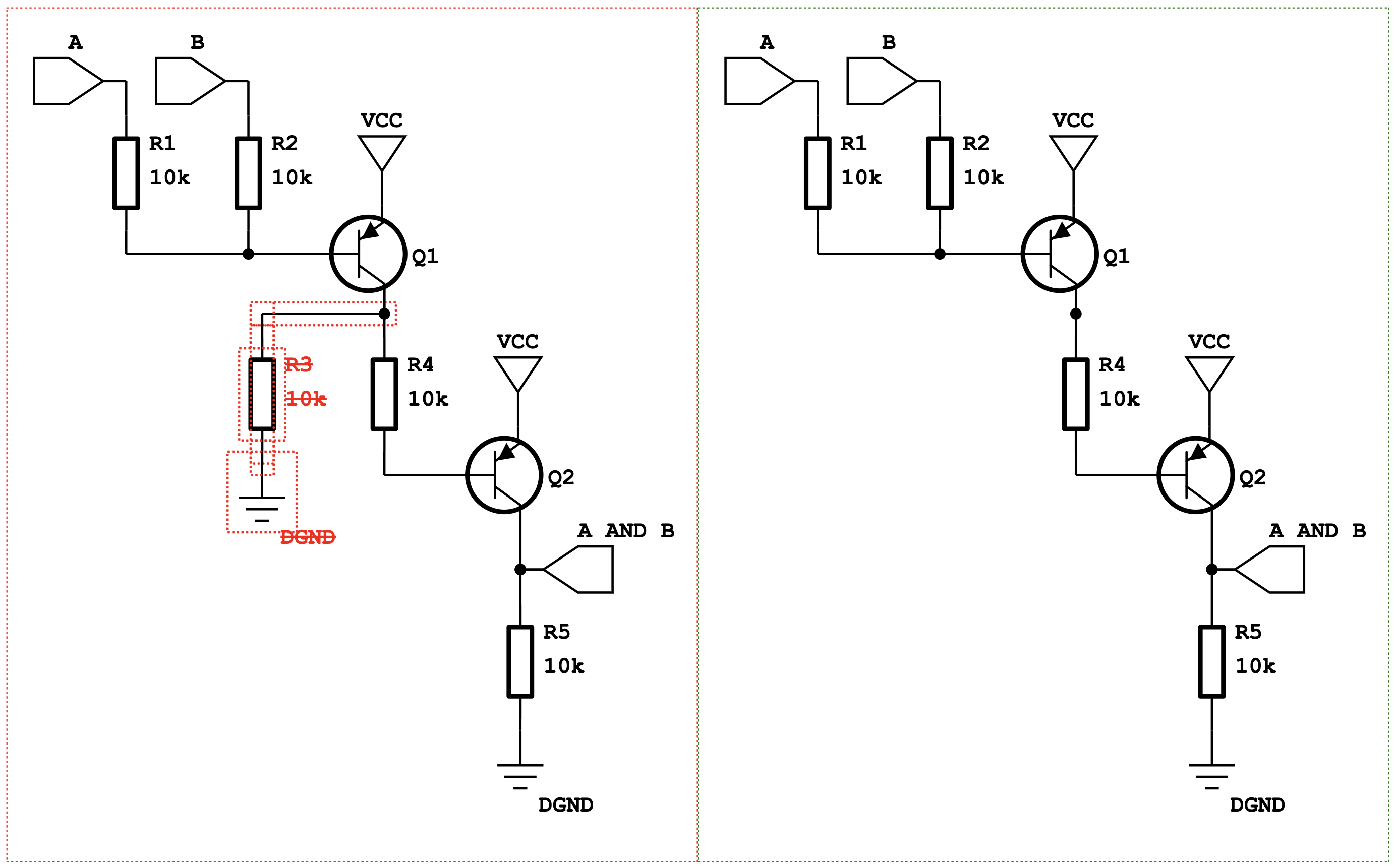
Detailed adjacent SVG comparison is more suitable for SVGs with less change. Change in the SVG is represented with adjacent A and B SVG inputs in addition to highlighted change. Individual change is highlighted with red and green (unless specified otherwise, see Example 4) bounding boxes, which contain a deltaxml:svgBoundingBoxId to distinguish added <rect> elements from original elements.
If the percentage change to the SVG exceeds a threshold, the fallback mechanism can be employed to switch granularity level to ADJACENT (see Example 3).
Detailed Adjacent is the default and recommended setting for SVG comparisons.
Result (Rendered HTML in Chrome)
ANIMATE_INLINE
Animate Inline reports SVG differences by animating them to fade inputs in and out using a change to the opacity from 1 to 0 for delete and 0 to 1 for add. This setting overrides any other SVG configuration.
Result (Rendered HTML in Chrome)
Example 3: Z-index Change
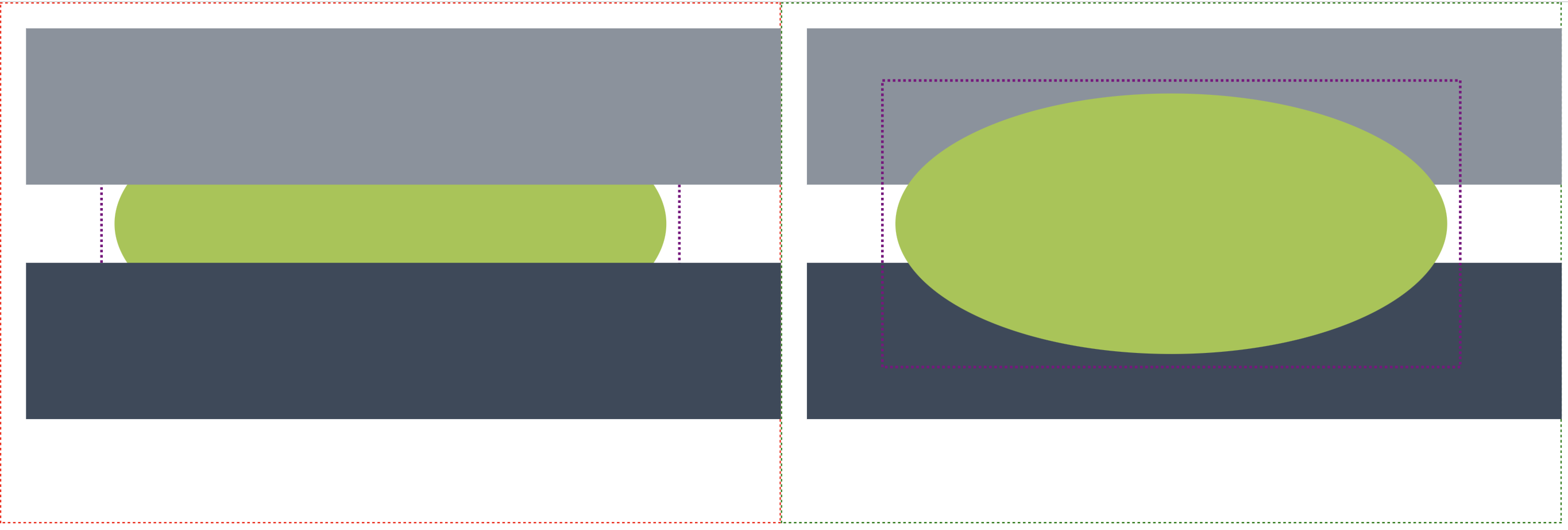
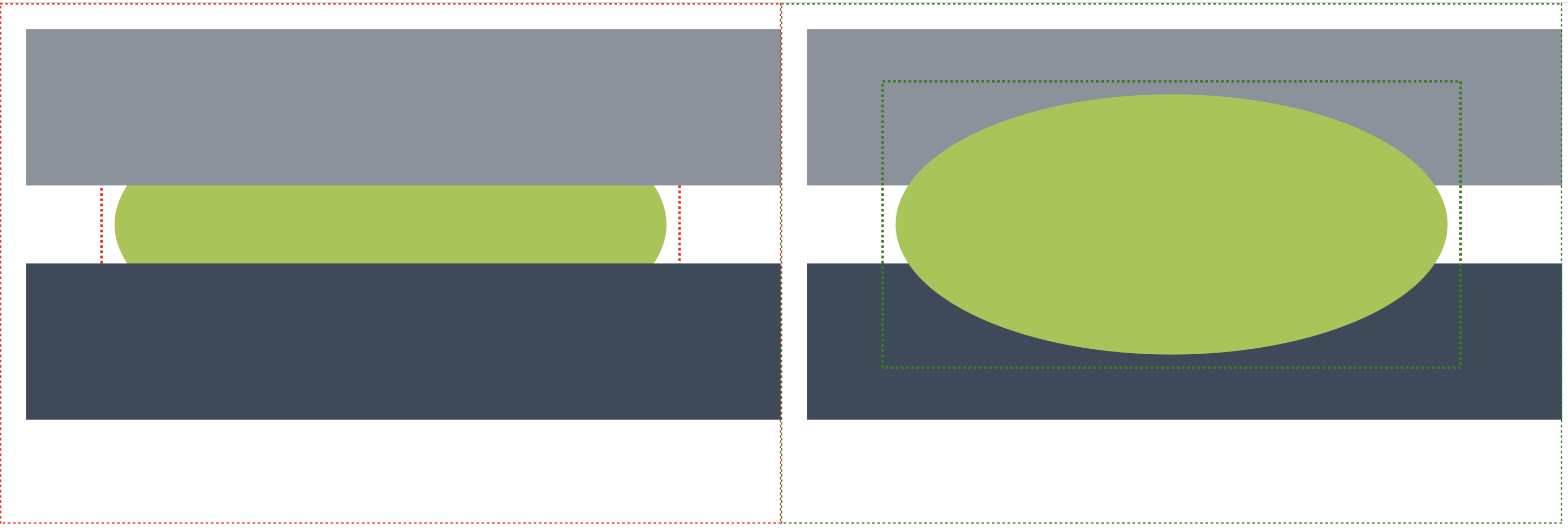
The Z-index within an SVG is defined as the order the element appears in the document, and thus determines the order elements are rendered within an SVG. Elements with only Z-index changes are represented using a purple bounding box, as opposed to the standard red or green markup. Styling of Z-index change can be customized as shown in Example 6. By default, Z-index handling is on for SVG comparisons.
SVG Compare Z-index change handling implements Detecting and Handling Moves , and matches on the SVG id attribute, using the XPath expression @id. User-defined move handling cannot be used in conjunction with SVG Compare Z-index Change handling.
Rendered HTML (in Chrome)
A

B

Result Z-Index Enabled (Rendered HTML in Chrome)
Result Z-Index Disabled (Rendered HTML in Chrome)
Z-index change and Element Change
Representation of a Z-index change and a change to the element is shown in the following example. Changes other than Z-index take precedence, which means the element within both the A SVG (source) and the B SVG result (target) is given a respective red/green bounding box.
Rendered HTML (in Chrome)
A
B
Result (Rendered HTML in Chrome)
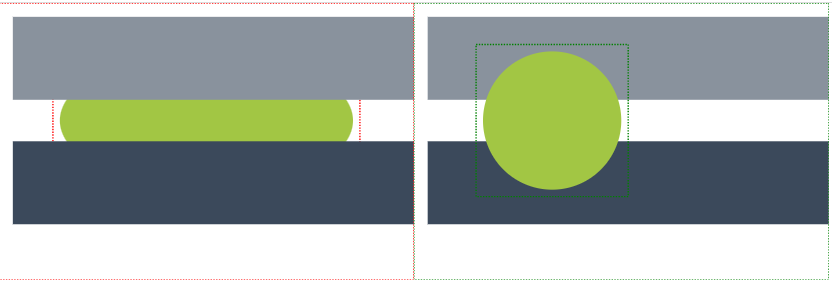
Example 4: Numeric Tolerance
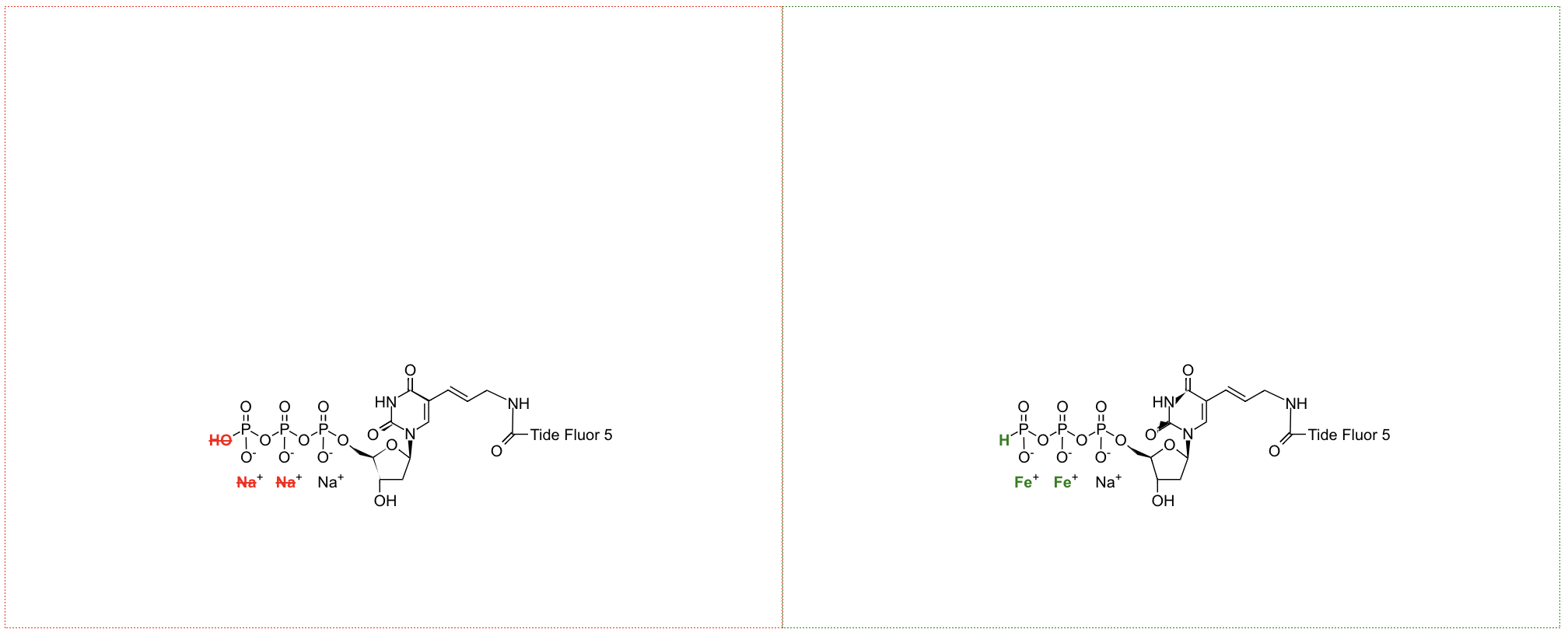
Automatically generated SVGs through SVG editors can alter values by insignificant amounts while remaining visually identical, thus the numeric tolerance feature was implemented to not mark up negligible change. This is done by checking corresponding coordinate values for individual elements in A & B input SVGs and only marking them as a change when the difference between the 2 values is greater than the specified tolerance.
By default, this feature is enabled for SVG comparisons and set to 1%.
Numeric Tolerance Value
The Numeric Tolerance value can be both a fixed value given in the default SVG unit pixels, i.e., 10, or as a percentage. When given as a percentage, for example 1%, the difference between corresponding A and B coordinates of a given element is checked to be less than 1% of the B coordinate value. If it less then the change is considered negligible and not highlighted.
To provide more control over SVG comparisons, you can set the numericToleranceValue property to a custom value.
Result Numeric Tolerance default value 1% (Rendered HTML in Chrome)
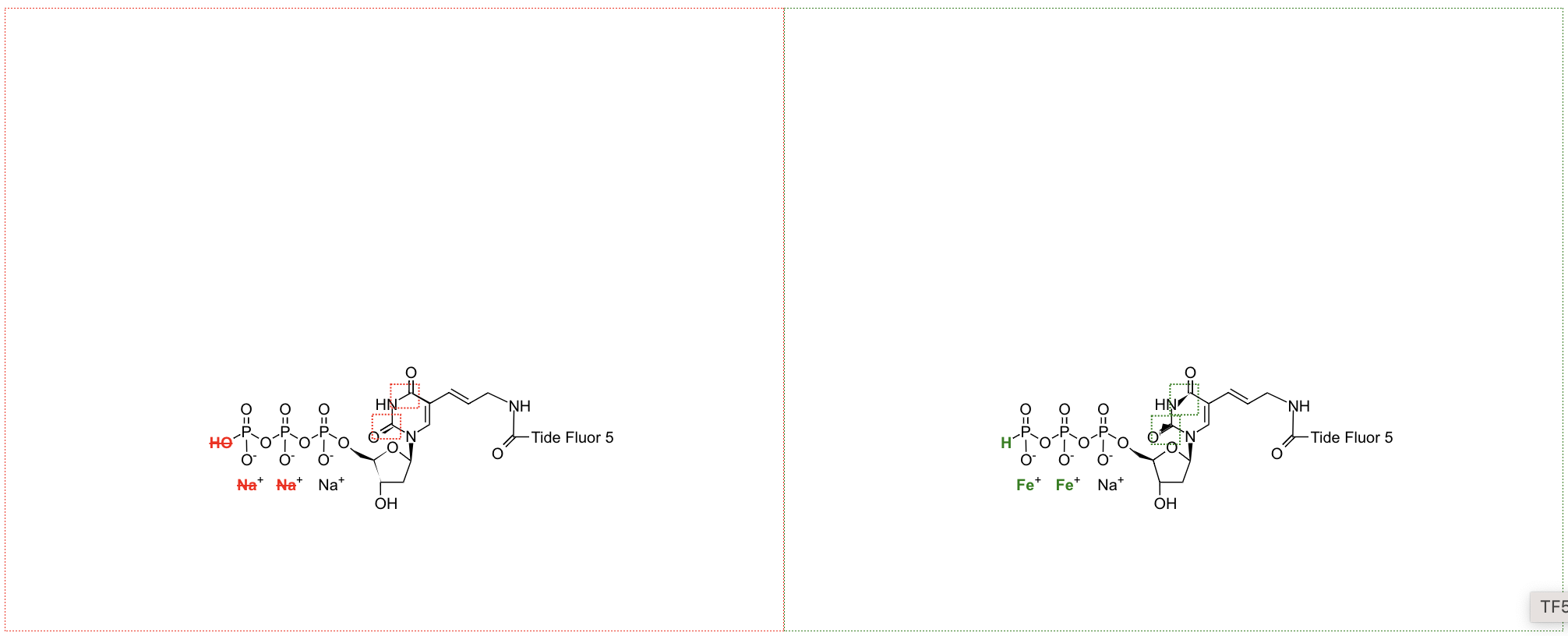
Result Numeric Tolerance value 5% (Rendered HTML in Chrome)
Example 5: Fallback
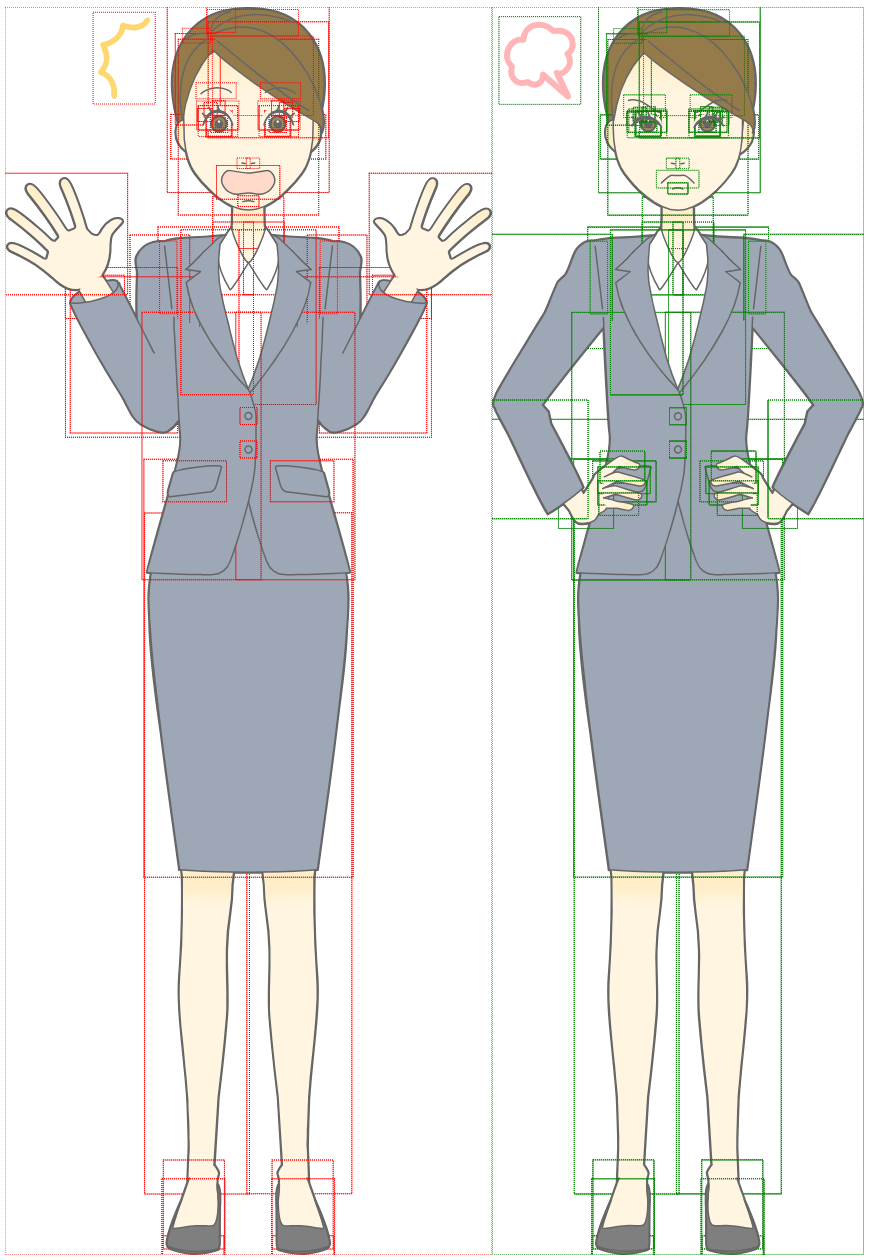
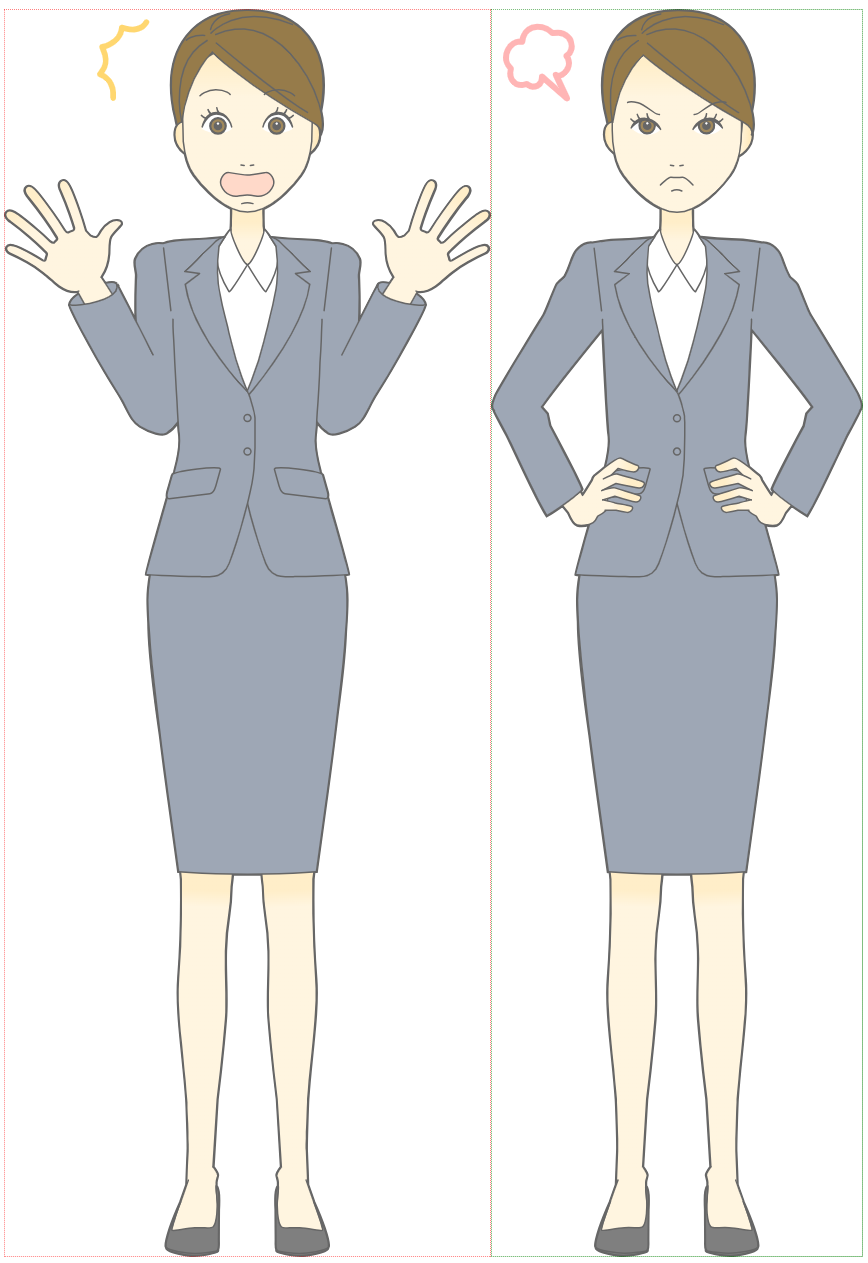
To ensure a readable result, SVG comparison includes a fallback feature when running DETAILED_ADJACENT comparisons. In some circumstances, change between both A and B documents can be overwhelming as the bounding boxes added can crowd the SVG leading to results not being meaningful. To fix this, SVG compare has a fallback mechanism, where a DETAILED_ADJACENT comparison representation falls back to an ADJACENT comparison representation if the amount of change in an SVG is above a specified percentage.
The fallback mechanism is turned off by default.
Fallback Change Percentage
The default fallback percentage is set to 30%, therefore when percentage of change in a comparison is greater than 30%, fallback occurS and the ADJACENT result is shown. To provide more control over SVG comparisons, the fallbackChangePercentage property allows a custom fallback threshold to be set. The custom fallback value needs to be provided as a decimal number e.g.: 25.0.
Result Without Fallback
Fallback can be enabled when needed, to retain the DETAILED_ADJACENT result irrespective of the fallback percentage.
Result (Rendered HTML in Chrome)
Result With Fallback
Result (Rendered HTML in Chrome)
Example 6: Custom Styling for Change Markup
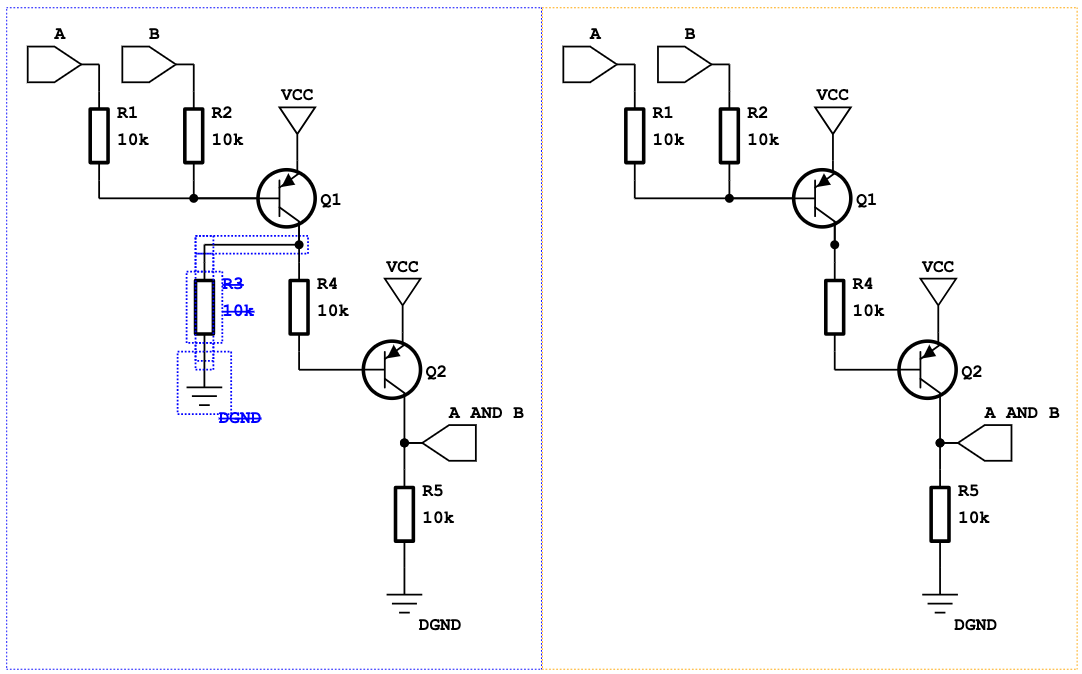
DeltaNova XML’s standard representation of change is red and green for additions and deletion, and purple for Z-Index change. Despite the standard markup, you have the option to change the markup colors to ensure users can achieve the best results. The color styling of change markup in both A and B, and Z-index change can be altered. When using the DCP, you can apply custom styling by using the svgInputAMarkupStyle, svgInputBMarkupStyle, and svgInputZMarkupStyle parameters. These values need to be provided as color names, RGB or RGBA values, HEX values, HSL or HSLA values.
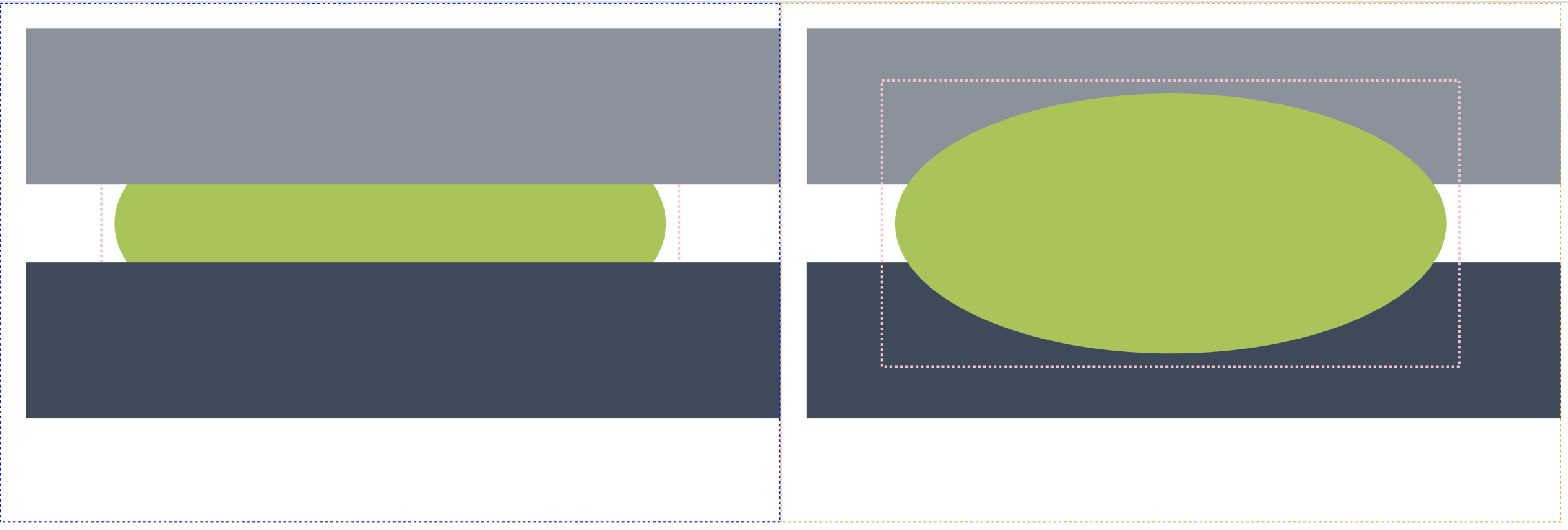
Result A and B Styling Change (Rendered HTML in Chrome)
Result Z-Index Styling Change (Rendered HTML in Chrome)
Example 7: Change Propagation With Use Elements
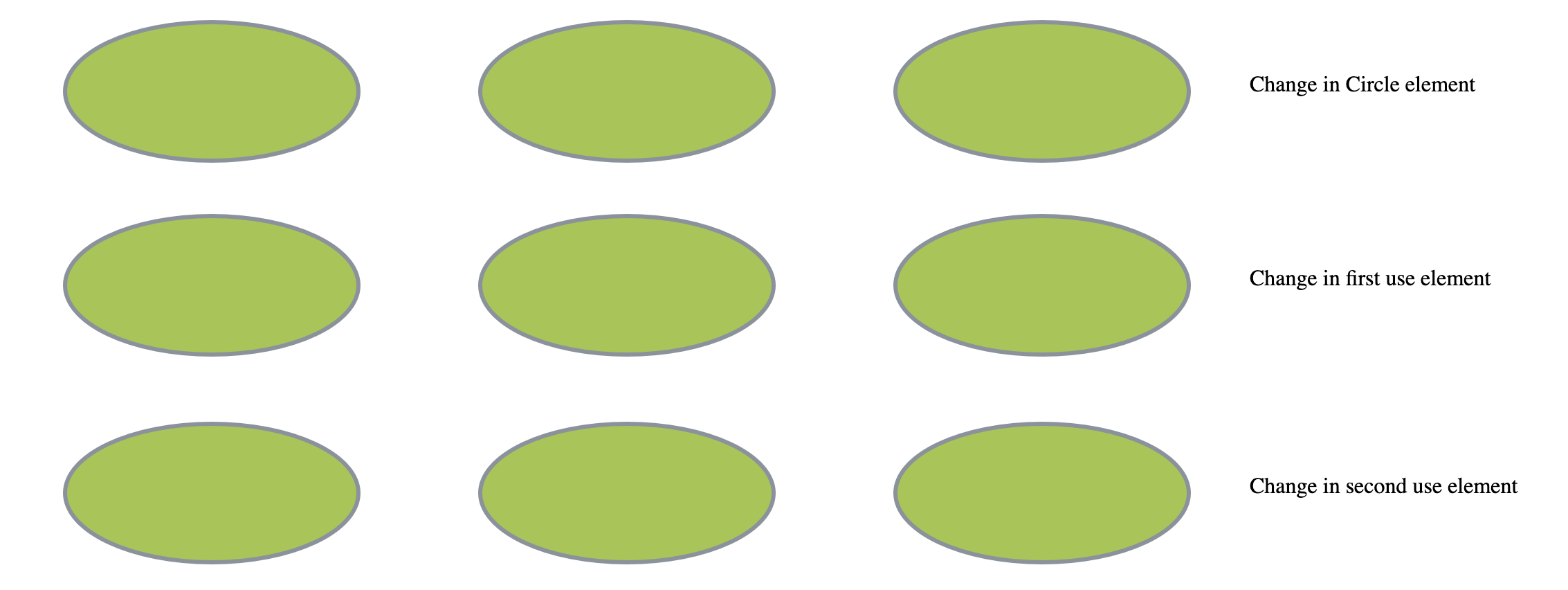
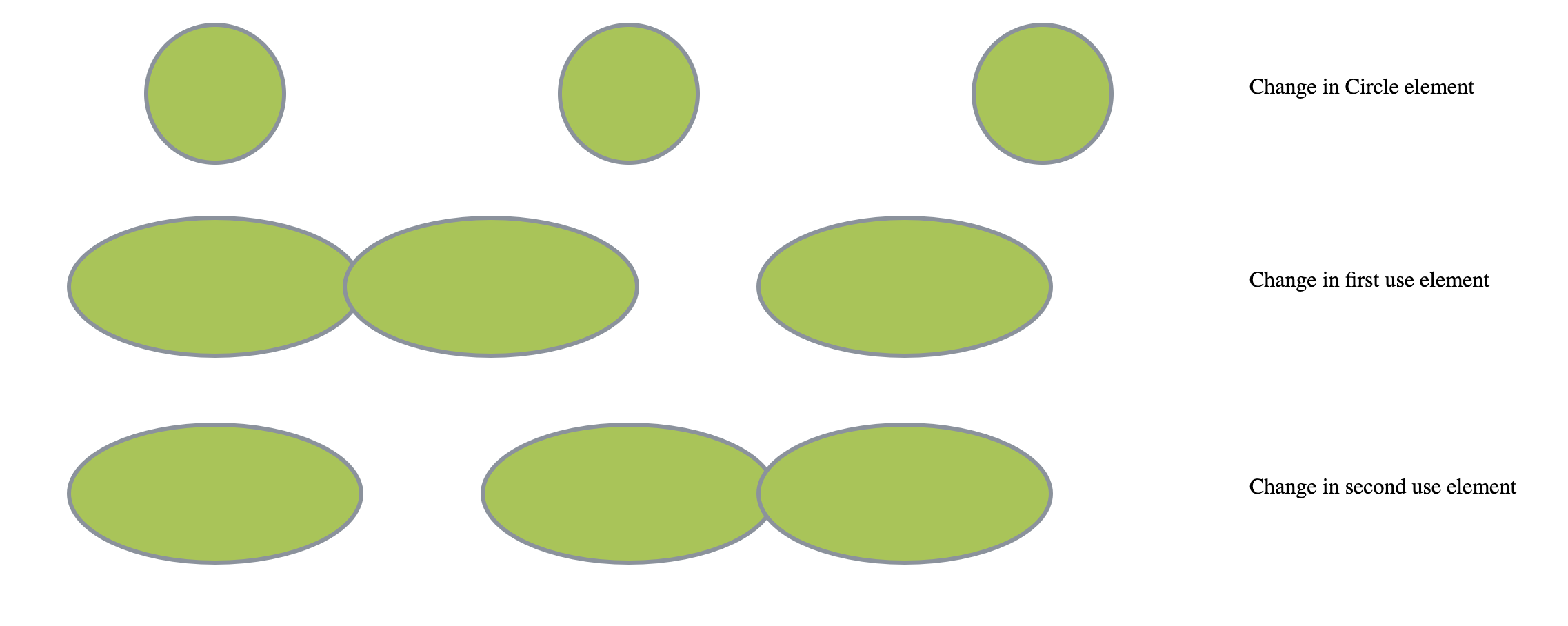
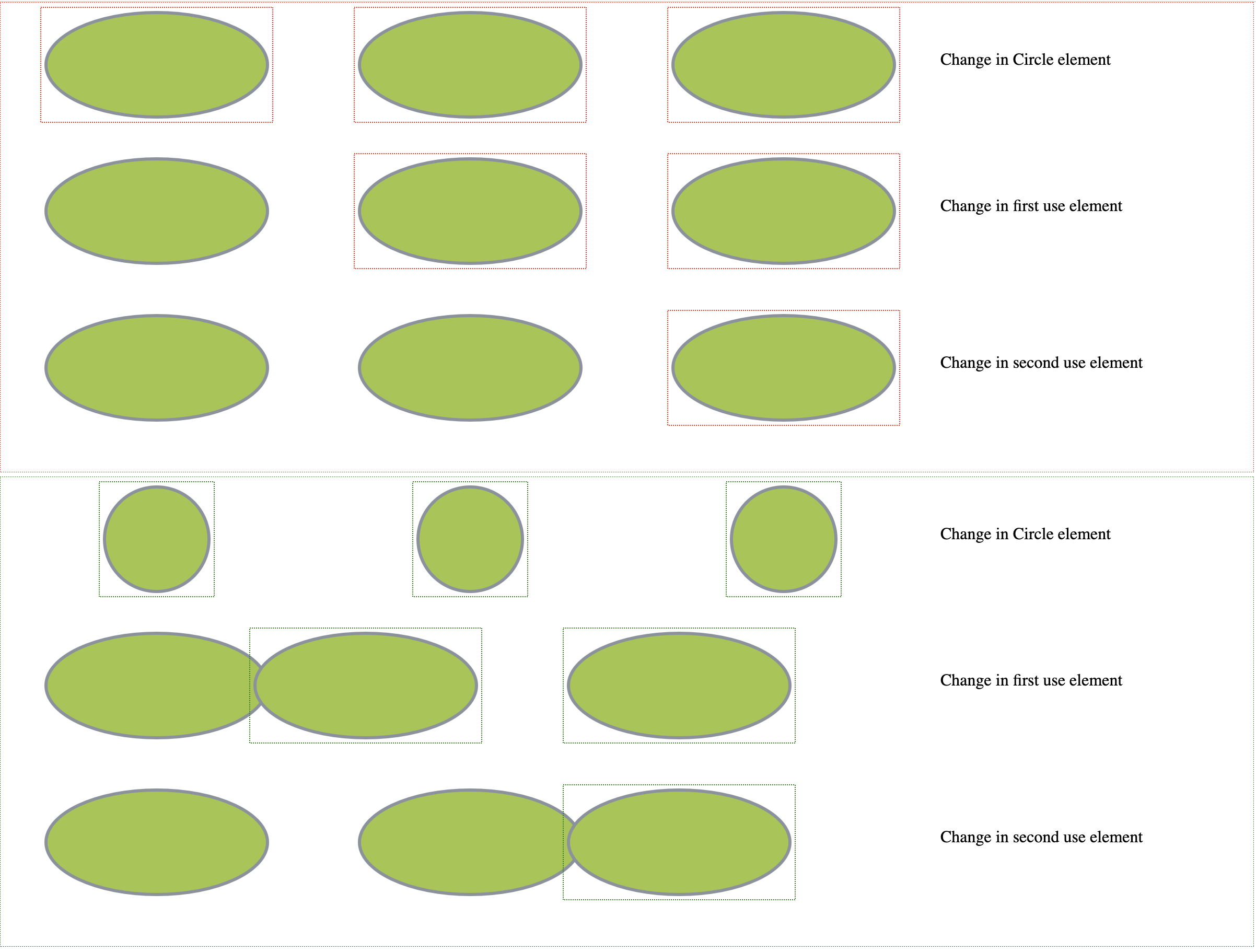
Within SVGs, a common element is <use> which references any other SVG element, duplicating it and (when provided with coordinates) moving it to another location. The best way to mark up change surrounding chains of referencing elements is to propagate change along the chain, as change to an element affects all references to it. As shown in the following example, a change to the initial <ellipse> element is highlighted as change in the element itself, and any following elements referencing it, with the same logic being applied from any element in the chain i.e., a change to the first <use> element.
Rendered HTML (in Chrome)
example7A.svg
example7B.svg
Result (Rendered HTML in Chrome)
Example 8: Text and TextPath Representation
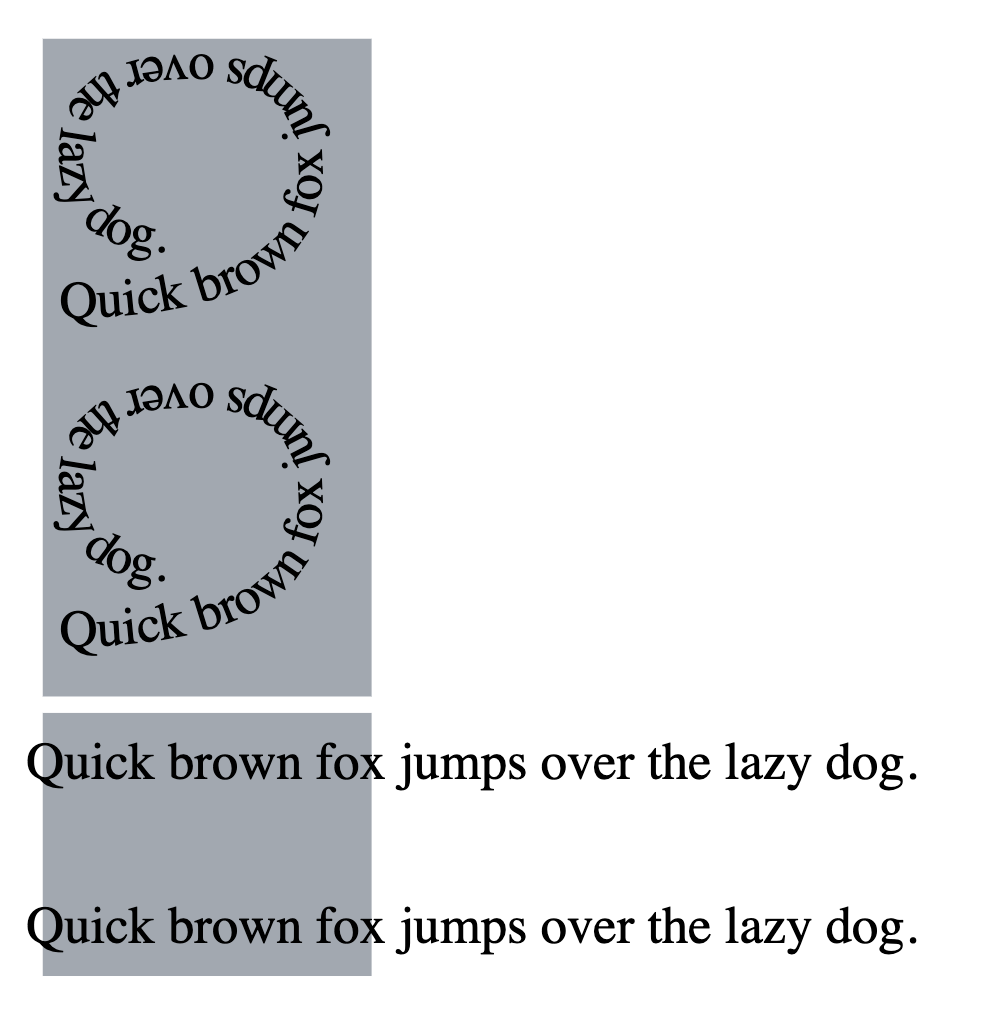
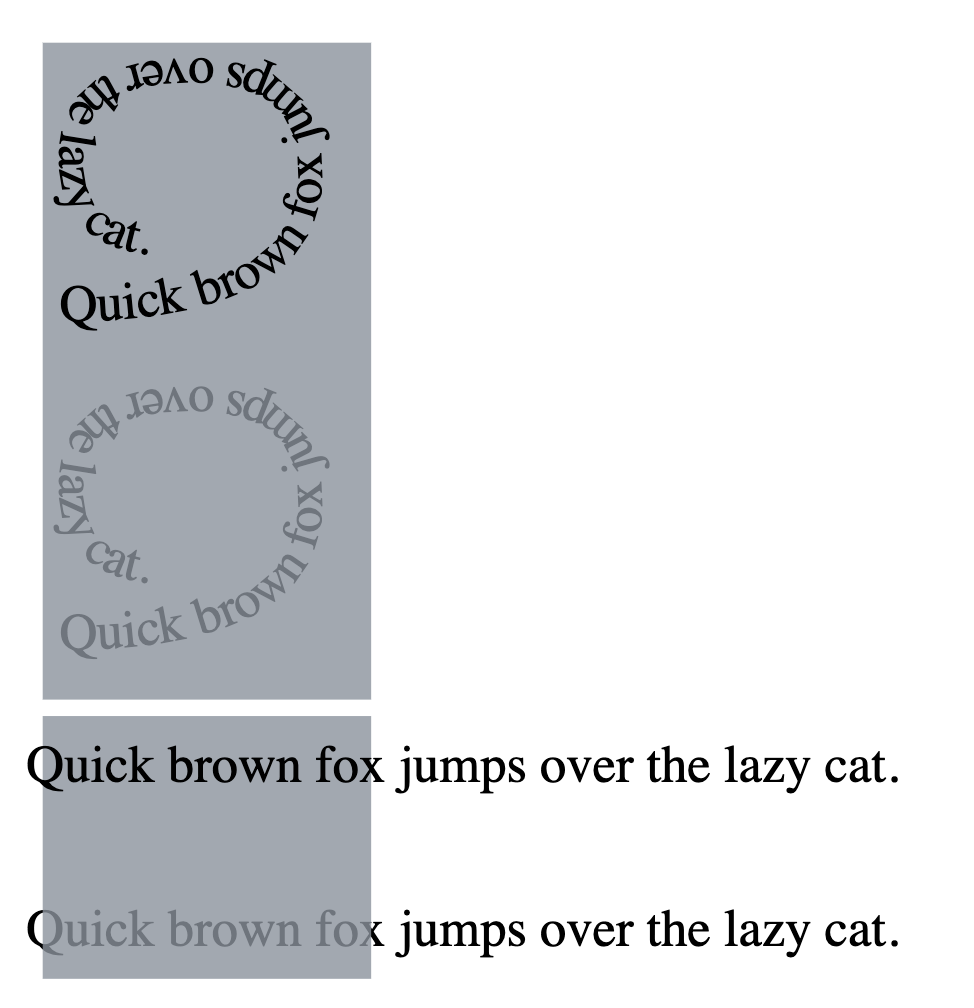
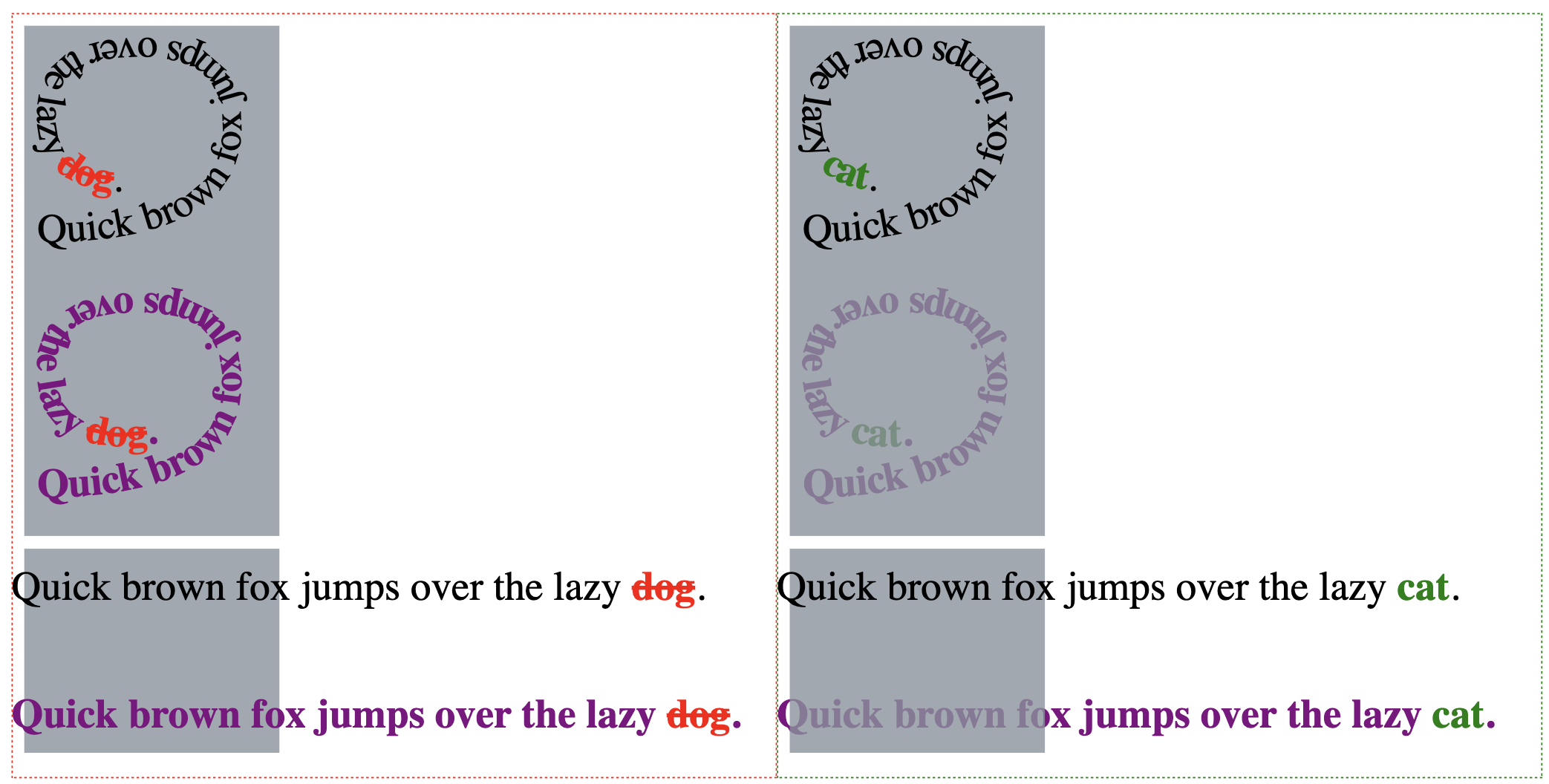
The following example shows representation of change to text and textPath elements in SVG. Changes to the text is shown through the highlighting of text within <text> or <textPath> elements using red and green coloring for A and B respectively, then purple for Z-index change. As mentioned in Example 3, non Z-index change takes precedence over Z-index changes, thus with both a change to the text and a z-index change, the result highlights additions and deletions of text with red and green, whilst the remaining text will be purple to indicate the Z-index change.
Rendered HTML (in Chrome)
example8A.svg
example8B.svg
Result (Rendered HTML in Chrome)
Provided DTD for Local Use
DeltaNova provides a catalog for SVG as follows.
java -Dxml.catalog.files=DeltaXML-XML-Compare-10_0_0_j/samples/catalog/svg/catalog.xmlcommand-{version}.jar
Limitations
Due to the scope and complexity of SVG, there are some limitations for the comparisons.
-
Numeric tolerance is not applied on transform attributes.
-
Numeric Tolerance is only applied on an individual element level.
-
Matrices used in transform attribute are not handled.
-
Translate, rotate, scale are handled.
-
Nested SVGs (an SVG inside another SVG) are not handled.
-
Font-based units are not handled.
-
No support for referenced images within SVG i.e., a referenced JPEG.
-
Change styling is limited to color.
-
Bounding boxes are not proportional to the size of the SVG.