
DeltaNova PDF Comparison
DeltaNova PDF Compare is a powerful solution for comparing two PDF files. It produces a HTML result containing a highlighted side-by-side view showing the differences between the two input PDF files.
Benefits
-
Simple application to use
-
DeltaNova PDF Compare works great for text changes,
-
Automates some of the process by removing the need for a full manual review
-
DeltaNova PDF Compare compares images, allowing you to quickly compare different image files.
Advantages of DeltaNova PDF Compare
Produce a side by side HTML view of both documents with all the changes highlighted.
-
Can be integrated into any workflow or toolchain via Java/REST/command-line API options.
-
Clearly show a side by side view of all changes within two PDFs
-
Results are easy to navigate showing the two original documents
DeltaNova PDF Compare Result
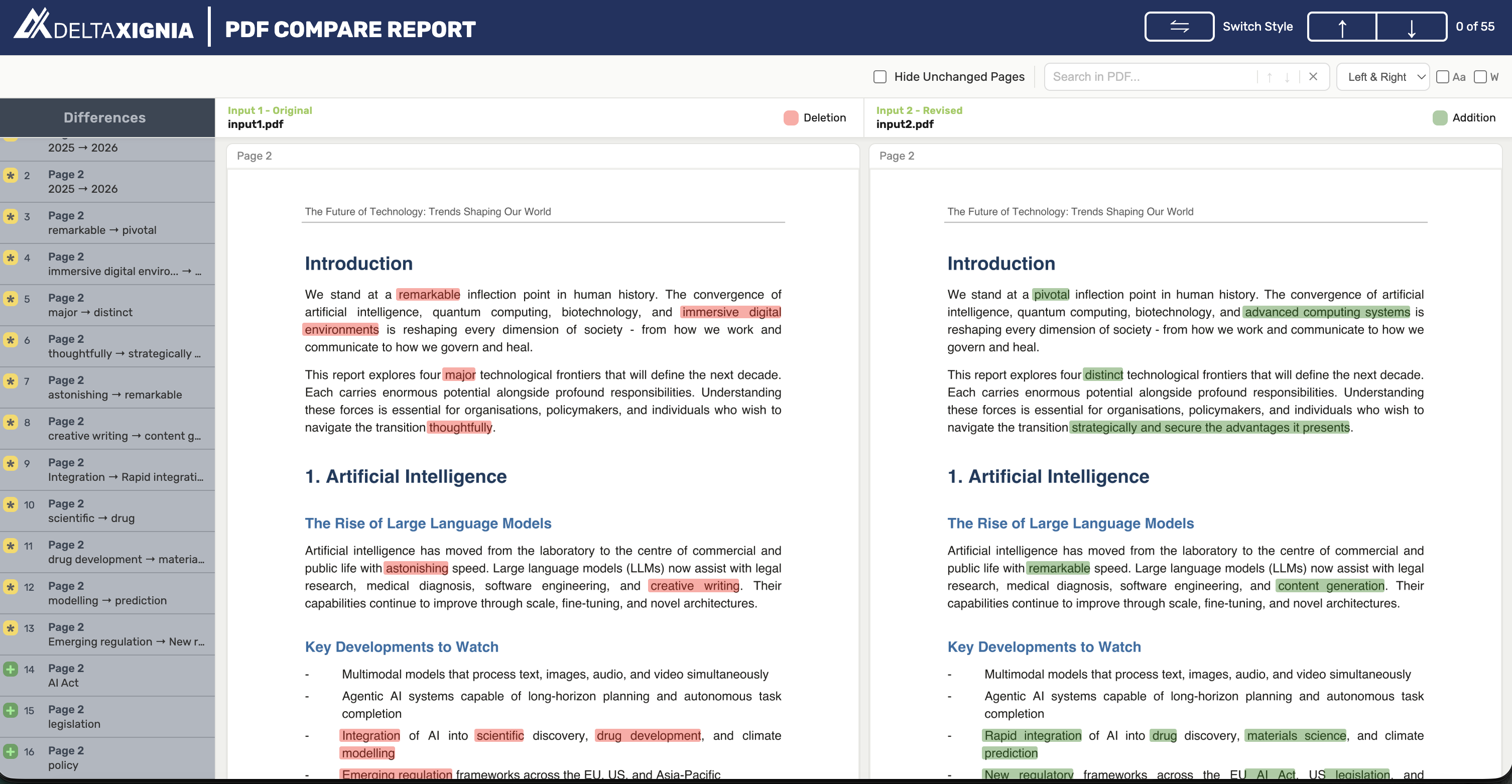
The result of the PDF comparison is a HTML report that shows you a marked up version of the two input documents, so that they are easy to identify. The report can be used as a guide to mark changes within files but you will not be able to edit the pdf itself.
Below is an example of what you can expect from the PDF report.
Navigating the Report
There are a few elements on this page that will help you look through your document.
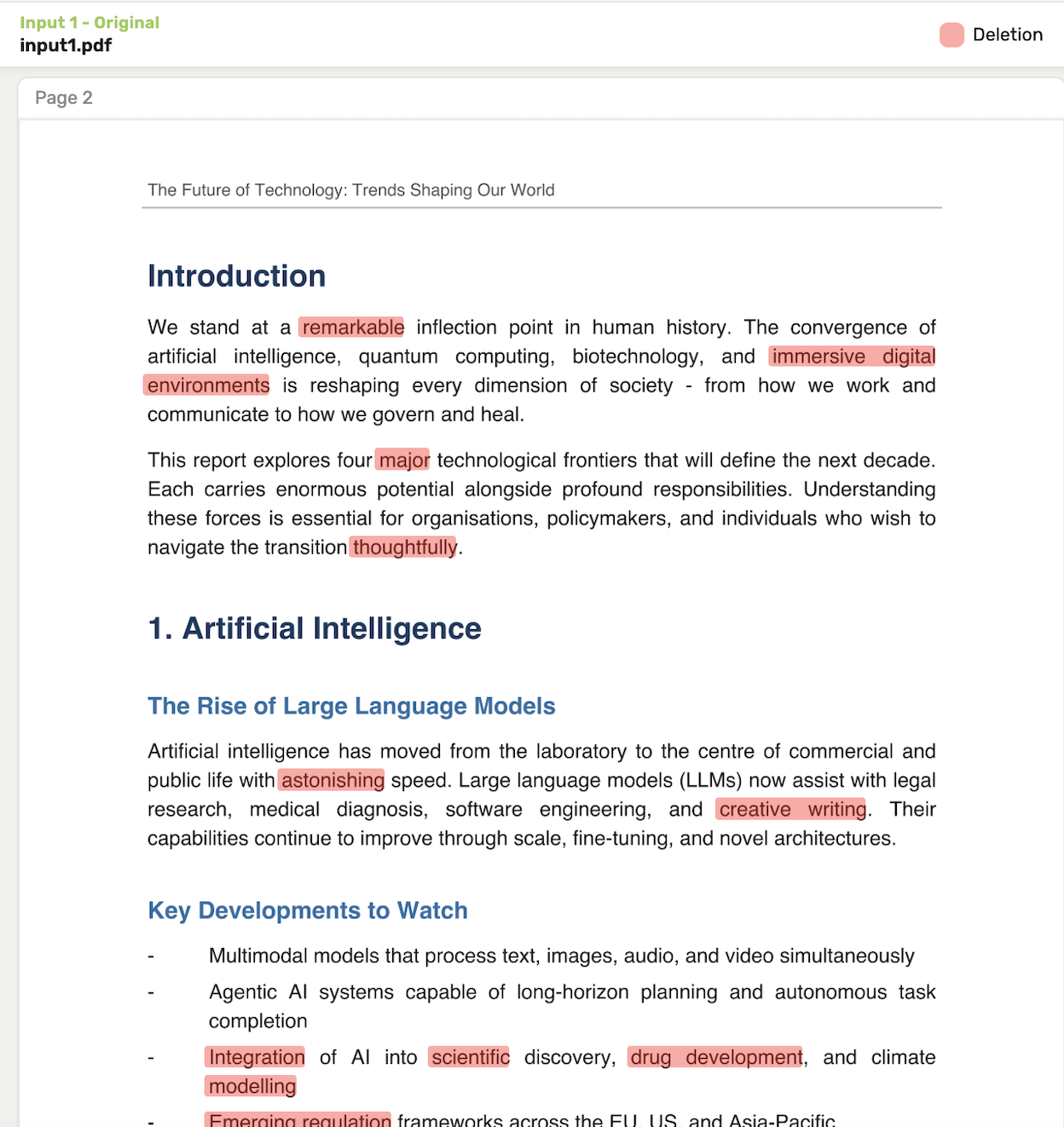
Input 1
Shows your first input document.
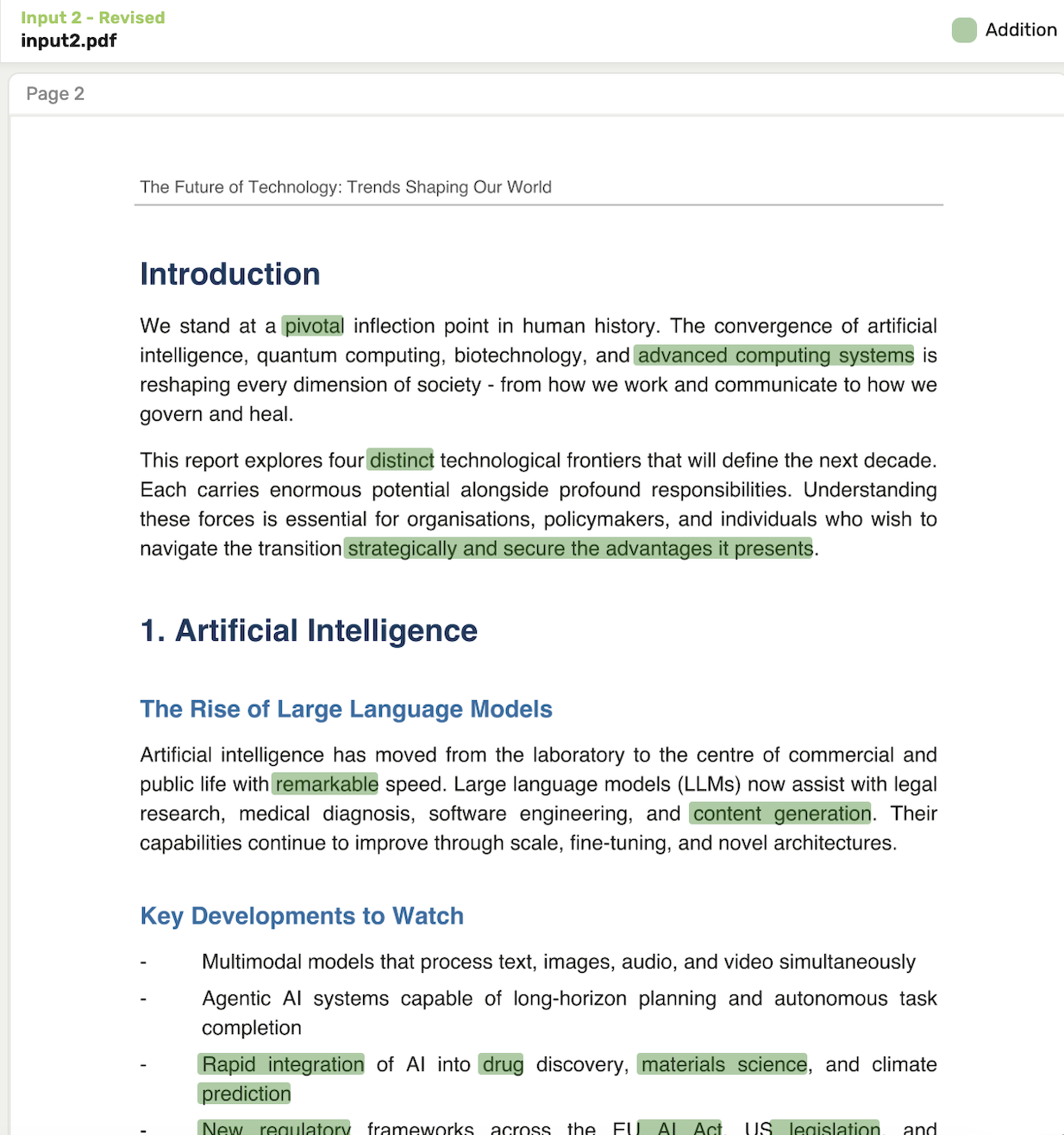
Input 2
Shows your second input document.
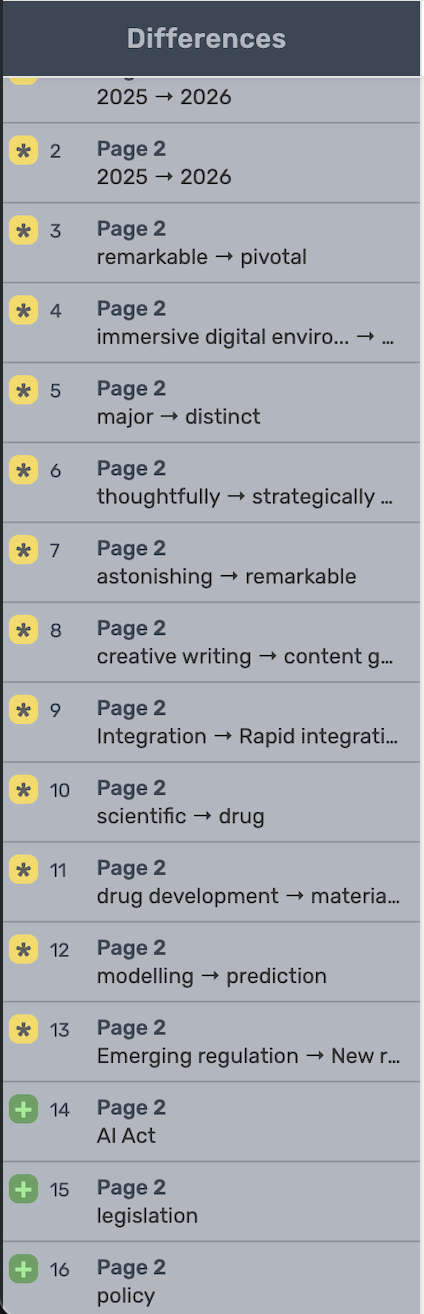
Changes Navigation Panel
Shows a list of changes that have happened within the document, and if you click one of the changes within this list it will take you to the location of the change.
Navigation Arrows
Use these arrows to scroll through the Navigation Panel showing all the differences.

Hide Unchanged Pages
You can choose to not show any unchanged pages to help remove unnecessary information on the report.

Page Search
Search through the PDF using the search bar. You can set it to look through both PDFs or the left or the right. You can access this using the drop-down menu.

Image Changes
Here is an example of image changes within a pdf.
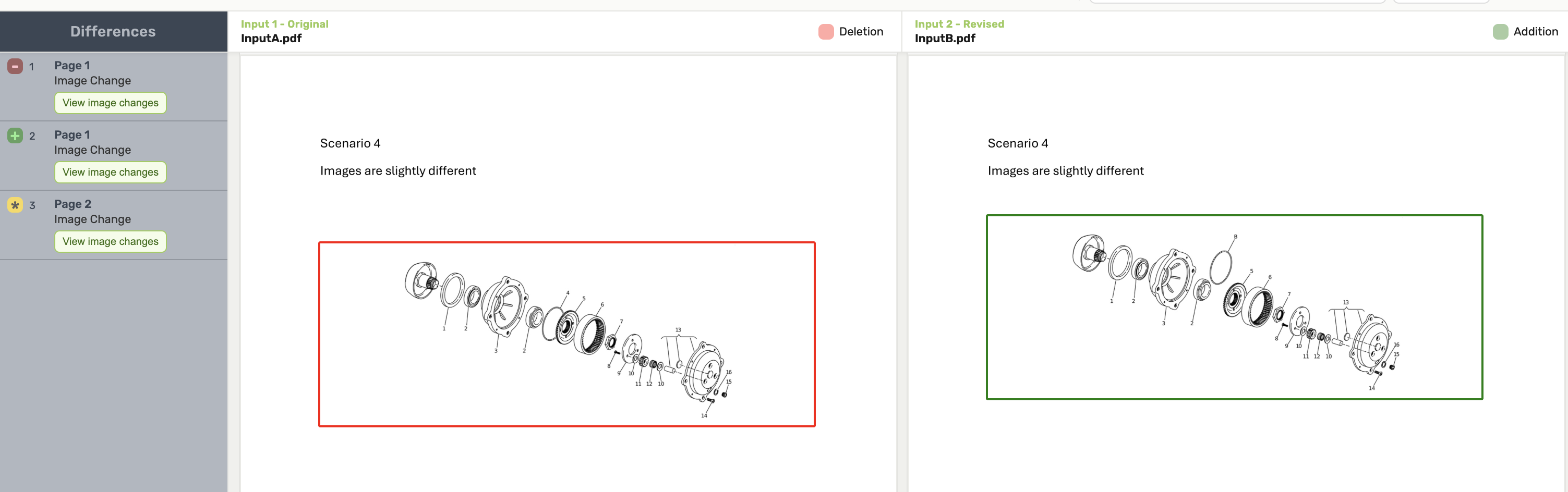
A red and green box will appear around your changed image. .

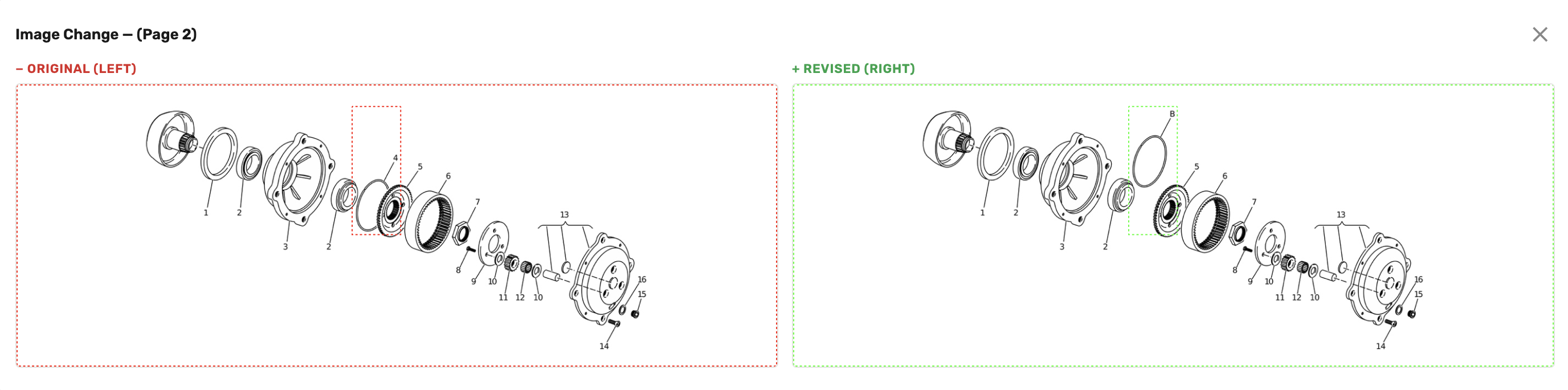
If you click “View image changes” in the Navigation like shown above, you will see a popup with a more in-depth side-by-side image showing the differences.
Supported and Unsupported Features
The scope of the PDF Compare Version 1 is to compare two PDF documents, provide a report that side by side view of a red-lined version of both PDFs that clearly shows all changes within those PDFs.
Supported
-
PDF Layout Support
-
Text Changes
-
Page Changes
-
Image Changes
-
Layout Shifts
-
Side-by-Side Diff Report
-
JAVA API
-
REST API
-
CLI
-
Customisable result colouring
Unsupported
-
Off-centred bounding boxes from scanned pdf’s
-
Limited formatting from scanned pdfs
-
Objects symbols and dots from scanned pdf’s may not be rendered
-
Handling vertical writing and right to left writing
-
Changes in re-flown text
-
Cropped image handling
-
Form PDFs
API overview
We provide the following ways to use PDF Compare.
Future Enhancement Considerations
-
Structural table comparison
-
Character by Character
-
Content Moves
-
When there is a pair of added/deleted pages we should put them side by side to make viewing them easier
-
Align changes when one is clicked
-
Scroll differences using arrow keys.