
DocBook Comparison highlights changes between two DocBook files. It performs a detailed comparison between the two files and automatically adds revision flags to highlight added, deleted or changed text. Alternatively, DocBook Compare can be configured to output the differences in some XML editor specific 'track change' formats.
You can show the changes in any colour or text decoration by modifying your publishing pipeline. Whether you are publishing to the web or printed page, you can highlight changes with DocBook Comparison.
The DocBook Comparison Configuration reference gives the details about all the configurations.
How is the Comparison Performed?
DocBook Comparison makes use of the fact that DocBook is an XML format when performing document comparison. XML documents are machine readable documents that conform to a set of rules defined by the W3C.
Controlling Matching
It is possible to influence the way in which the element matching takes place using 'keys'. When an element has a key assigned to it, it will only ever match an element in the other document that has the same key assigned to it (as long as it also has the same element name, this principle never changes). Key matching takes precedence over content matching and so elements with the same key will match even if their content is very different. The simplest way of adding keys to an element is to use the DocBook id (or xml:id in DocBook 5) attribute. With the correct setting for the keying-mode parameter selected (in this case use 'useId'), this is then converted into a key (the deltaxml:key attribute) as part of the pre-processing performed by DocBook Compare and used by XML Compare to match elements together. Please note that an element with a key will never match an element without one.
One potential problem with using ids as keys is that ids are also used for cross referencing. The following scenario highlights the potential problem: two paragraphs exist in the original version of the document, neither having an id. In the second version of the document, the content of the first paragraph remains the same but the second paragraph now includes a cross-reference to the first paragraph. This means that the first paragraph now requires an id so that it can be referenced. If ids are used as keys, the first paragraph will not match correctly across the two documents (it doesn't have a key in the first document and does in the second, therefore it will not match). This leads to an undesirable result. One way to avoid this situation is to always add ids to elements, even if they are not being cross-referenced. Another solution is to use a different keying mode that does not use an element's id value as a key.
There are other ways to add keys to the document. One is to use the deltaxml:key attribute directly on the elements that you wish to key. While this will aid in matching, the deltaxml:key attribute is not a valid DocBook attribute and so you must either customise the DocBook DTD (or RNG grammar) to allow it, or switch off input validation when you run DocBook Compare. This attribute will be used for keying without having to configure the keying-mode parameter. The default setting makes use of any existing deltaxml:key attributes.
Another way of adding keys is to use the condition attribute available on most elements. If you choose this method, the keying-mode parameter should be set to useCondition.
Pre-processing
As well as converting id or condition attributes to keys, the pre-processing stages perform many other tasks in the documents. These tasks are described below, along with any parameter settings available for configuring them.
Removing revisionflags
Because the result uses revisionflag attributes to display the changes between the inputs, each of the inputs must first have any existing revisionflag attributes removed. This avoids confusion between pre-existing attributes and those added as part of the comparison.
Preserving comments and processing instructions
XML comments (text contained in <!-- --> markup) and processing instructions (special instructions marked as <?instruction_name more details ?>) in the document need to be converted into other XML markup in order to be output in the result document. This task is carried out before comparison, the elements are then compared and they are converted back into comments and processing instructions afterwards.
Whitespace preservation
For most DocBook elements, whitespace is not significant (e.g. multiple spaces and newlines are effectively turned into a single space when converting to a published format such as PDF). Therefore, when using the DocBook markup such spaces are 'normalized' before comparison.
Tracked changes output formats are intended for use with editors, where 'roundtrip' processing is the typical behaviour. In this case we are typically not interested in whitespace change, but want to preserve the document indentation. Therefore, we 'ignore' changes in whitespace.
Formatted elements
For some elements, whitespace is important and should never be normalised, regardless of the setting of preserve-whitespace. programlisting, literallayout and address are examples of elements where whitespace has meaning and is usually used in the final published document. These elements have the xml:space="preserve" attribute added to them which prevents any whitespace normalisation.
Character by character
By setting character-by-character parameter to true, it's possible to compare your files with a finer grain of detail, even showing individual character changes such as capital letters or spelling mistakes. With this setting enabled you may then start to adjust which parts of your files are compared using it, by adding attributes deltaxml:character-by-character=true or deltaxml:character-by-character=false where required. However the character-by-character parameter must be set to true in order to do this.
Should just a small part of your docbook files need CBC we recommend putting deltaxml:character-by-character=false on the root element of the file whilst adding deltaxml:character-by-character=true to the small number of sections where you would like it to be used. Alternatively should you want the majority of your file to be compared using CBC with just a few elements not to be, just add deltaxml:character-by-character=false to them to prevent this.
Table processing
Table comparison is a complicated matter and part of the requirements for processing DocBook tables is that the table is a valid 'CALS Table'. This is a separate standard that defines how tables should be constructed and is used as the definition for DocBook tables. However, it is possible for a table to be valid according to the DocBook language but semantically invalid according to the CALS table specification. Part of the input processing analyzes tables in the document, performs normalization and annotates them to inform later processing stages about their validity.
Table normalization involves the following:
-
Converting a column width (the
colwidthattribute) value of*to1*. These are semantically equivalent but would register as a difference when compared. -
Explicitly outputting inferred column specifications (
colspecelements). For example, if the first column defined is listed as column 2, then there is an inferred default entry for column 1. The input processing adds an explicit definition of such inferredcolspecs.
DocBook Compare also includes support for comparing HTML tables. Processing for HTML tables is slightly different as they are a much simpler form of table than CALS tables.
Post-processing
Following the comparison several post processing tasks are applied. Some of these tasks appropriately remove additional markup that was added by the input processing stages, such as removing the word-level element wrapping. Other tasks include identifying conflicting change in element's id, and marking up the output as specified by the output format parameter.
The remainder of this section presents some of these output processing tasks in more detail.
Conflicting [xml:]id processing
DocBook can use XML id attributes as the target (or anchor points) for cross-referencing. The comparison of the documents can identify when such ids have been modified, deleted, or inserted. In principal, id modification can be handled by keeping the newer version of the id, and ensuring that all the references to the old version of the identifier are replaced by the new version of the id. However, it is possible that the new version of the identifier existed in a deleted portion of the original document. In this case, the deleted id and any reference to it needs to be renamed.
Note that it is not possible for the new version of a 'valid' DocBook document to have two (or more) elements with the same XML id, therefore any conflict in id name must be in the deleted portion of the document (at least for a two way comparison).
Currently any element that contains a linkend, endterm, otherterm or startref attribute is considered to be the source of a cross-reference to an [xml:]id with the same value as that of the source attribute. Only these attributes will have their values updated by the conflict id processing (in addition to the ids themselves).
Attribute change
Attribute changes are detected by the comparison process and handled by the post-processing filters. However, there is one general exception to this handling, in that any XML id attribute changes that are updated by the conflict id processing (the section above called “Conflicting [xml:]id processing”) may have had their values resolved. In such cases, there is no attribute change to report by the subsequent attribute change processing.
DocBook 5 and Entities
Since DocBook 5, the grammar has been specified using RELAX NG (RNG) rather than DTD (as it was in DocBook 4.x). Although DocBook 5 does have a DTD version of the grammar, most editors use the RNG grammar for validation.
An editor may use the xml-model processing instruction for validation purposes, e.g.
<?xml-model href="http://www.oasis-open.org/docbook/xml/5.0/rng/docbook.rng" schematypens="http://relaxng.org/ns/structure/1.0"?>
If a document that does not use a DTD grammar needs to include the use of entities, these may be defined in the DOCTYPE of the document. The following example shows how to define an entity to use as the title of book:
<!DOCTYPE book [
  <!ENTITY cp_title "This is the Book Title">
]>
        <book xmlns="http://docbook.org/ns/docbook" version="5.0">
            <title>&cp_title;</title>
            ...
        </book>
If an editor is using the xml-model processing instruction for validation, it will usually ignore this DOCTYPE when validating and use it only for the declaration of entities. However, the XML parser used in DocBook Compare will attempt to validate the document based on this DOCTYPE and, as there is no reference to a definition of the root element (either in an external file or internally in the DOCTYPE), the validation will fail and DocBook Compare will terminate.
There are a couple of ways to work around this issue:
-
Turn off input validation on DocBook Compare.
-
Supply a complete DTD that will be validated correctly e.g.:
<!DOCTYPE book PUBLIC "-//OASIS//DTD DocBook XML 5.0//EN" "file:///usr/local/java/docbook-5.0/dtd/docbook.dtd" [
  <!ENTITY cp_title "This is the Book Title">
]>
        <book xmlns="http://docbook.org/ns/docbook" version="5.0">
            <title>&cp_title;</title>
            ...
        </book>
Product Features
The DocBook Comparison product has several special features for handling specific situations. This section focuses on tables, round-trip processing (via lexical preservation), and attribute change.
Tables
DocBook tables (which use the CALS table model) are handled slightly differently from the rest of the document because displaying change, particularly structural change, in tables is more difficult. For this reason, structural table changes are shown at various different levels of granularity. Our main aim in the table processing is to produce a result where the changes can be seen in as much detail as possible but with the result document still maintaining validity against the DocBook specification and the CALS table specification. Producing an invalid result document can cause problems further down the publishing pipeline, particularly during FO to PDF processing.
Simple Structural Change
When the column definitions for the two tables have not changed, it is possible to represent changes to column or row spanning at the effected row granularity. Rather than repeating the whole of the table in two tgroup elements, it is possible to repeat only individual rows, or in some cases a set of consecutive rows from the original document (marked with revisionflag="deleted") followed by rows from the latest document (marked with revisionflag="added"). The number of rows that are repeated depends on what type of structural change has occurred. If the change involves changes to column spanning within a single row that does not overlap other rows and is itself not overlapped, it is possible to repeat only that single row. If column spanning changes occur on a row that overlaps other rows or is itself overlapped, it is necessary to group together all of the rows affected by the row spanning and repeat them together. This is also the case for any changes involving changes to row spanning.
Complex Structural Change
Some structural changes are too complex to represent in a single result table section (the tgroup element) and so the result document contains a table with two table sections: the first contains the table from the original document with a revisionflag="deleted" attribute on it, the second contains the table from the latest document with a revisionflag="added" attribute on it. Although it is not possible to see individual changes to rows/cells etc that occurred between the document versions, it is possible to see the two table versions and, provided that the inputs were both valid, be sure that the result document is valid.
This type of result is produced when a table contains changes to row or column spanning and at the same time changes to the column definitions (e.g. changed column names or added/deleted columns).
Other Changes
Other kinds of simple structural change can be represented within a single table without needing to repeat any rows. For example, column deletion in a table that does not have any changes to column or row spanning can be represented by marking each of the deleted cells with the revisionflag="deleted" attribute.
Orderless Tables
Sometimes the order of rows within a table is insignificant. For example, consider a simple product information table, where the first column of the table contains a unique product name, the second column its 'tag line', the third column its standard price, etc. The rows in this table can be reasonably ordered in a variety of ways, such as by 'name', or by 'price'. When two versions of a document are compared that use different row ordering mechanisms, a significant number of rows are likely to be added and deleted due to them moving position. If such differences are insignificant then an orderless row comparison would be useful.
Orderless row comparison support can be provided so long as there is no row spanning within the tables being compared. In such cases, the <?dxml-orderless-rows?> processing instruction can be added within the element that directly contains the rows that are to be processed in an orderless fashion. It is important to ensure that this processing instruction is added to the relevant table in both input documents.
The orderless comparison algorithm is greatly improved through the use of unique row keys. Adding a <?dxml-key id1?> processing instruction within the row element, sets that rows key to 'id1'. It is also possible to specify the row 'cell position' that is used for defining the default value for a row's key. For example, the <?dxml-orderless-rows cell-pos:2?> processing instruction, specified on the element directly containing the row elements, specifies that the text content of the row's second cell (e.g. <entry> or <td> element) should be used as the row's key. Note that the row cell position takes no account of 'column' data (e.g. @colnum attribute), it just counts the number of cells.
Ordered Tables
Even though the default comparison behaviour of rows within tables is to treat them as ordered, there are times when one might want to specify an ordering informed by a knowledge of the structure of the particular table. For example, when rows are either added or deleted it is often useful to specify an ordering to force the comparison result to align using a specified row cell as a key. DocBook Compare provides a method for achieving this called ordered table auto-keying. This feature uses a processing instruction mechanism similar to that used with Orderless Tables as described above.
Ordered row auto-keying is enabled by adding a <?dxml-ordered-rows?> processing instruction within an element that directly contains the rows to be processed in an ordered way. This processing instruction must be added to the desired table in both of the input documents.
Two methods are provided in order to specify the keying: explicit row keys and cell position.
To explicitly add a key to a table row, you must add a <?dxml-key id?> processing instruction within the row element to be keyed. The id can be any unique text such as an element name, or a unique generated number. It is important to ensure that each key specified is unique within a table. For example, adding a <?dxml-key id1234?> processing instruction within the row element sets that row's key to 'id1234'.
It is also possible to specify the row 'cell position' that is used for defining the default value for a row's key. For example, the <?dxml-ordered-rows cell-pos:2?> processing instruction specifies that the text content of the row's second cell (e.g. <entry> or <td> element) should be used as the row's key. Note that the row cell position takes no account of 'column' data (e.g. @colnum attribute), it just counts the number of cells.
Lexical Preservation: Preserving Entities, DTDs, CDATA, PIs and Comments
The DocBook Comparison product provides a selection of output formats with different intended use cases. Some are intended for use in a publication pipeline, whereas others are intended for onward review and editing (we refer to this as 'round trip' processing). For onward editing, it is useful to provide the user with a document that is as close to the original input documents as possible. For example, it is important not to expand entity references and CDATA sections.
These lexical preservation modes can be set by the preservation mode configuration. The remainder of this section provides: an overview of each lexical preservation mode (the section called “Modes” below); a detailed account of precisely what is preserved in each mode and a discussion on the limitations of preservation is detailed below.
Modes
Round trip preservation mode.
When using a track-change output format, a user is likely to expect that accepting all the changes would result in the 'B' document, whereas rejecting all the changes would result in the 'A' document. The 'round trip' preservation mode is designed to achieve this as far as possible, within the limitations of standard XML parsing and XSLT 2.0 transformation technologies. However, as some data cannot be tracked using tracked change markup, it is necessary to choose either the 'A' or 'B' version of that data. By default the result document uses data in the 'B' document in preference to that in the 'A' document. Hence, accepting all changes is likely to be close to the 'B' document whereas rejecting all changes may not be as close to the 'A' document.
Document preservation mode.
When marking changes using attributes, such as revision flags, the user is likely to expect full content expansion. Here entity references and CDATA sections are expanded and compared, rather than kept in their original source form. This typically enables finer grained change identification and display. It can also significantly improve the aligning of the documents before the comparison is performed. This type of processing is performed when using the 'document' preservation mode.
Document and attribute preservation mode.
One issue with the document preservation mode is that all the attributes that are provided by the DTD are retained in the output, which can lead to unnecessary clutter in the output, which both increases the size and decreases its clarity for manual review/editing. The 'document and attribute' preservation mode address this issue by tracking which attributes have been supplied by the DTD, and removing them so long as they have not changed.
Entity reference and nested entity reference preservation modes.
These are variations on the 'round trip' mode to enable expert users to know when the underpinning definitions of an entity have changed, as explained in the next section called “Details”.
Details
The table below shows the different preservation modes and their effect on how various items in the file are preserved.
Table 1. Preservation Modes
|
Preservation Mode |
Preserve Comments & Processing Instructions |
Preserve XML Declaration & Doctype |
Preserve defaulted attributes |
Preserve CDATA sections & whitespace |
Preserve entity references |
Preserve entity references & content |
Preserve nested entity references & content |
|---|---|---|---|---|---|---|---|
|
document |
on |
on |
off |
off |
off |
n/a |
n/a |
|
docAndAttrib |
on |
on |
on |
off |
off |
n/a |
n/a |
|
roundTrip |
on |
on |
on |
on |
on |
off |
off |
|
entityRef |
on |
on |
on |
on |
on |
on |
off |
|
nestedEntityRef |
on |
on |
on |
on |
on |
on |
on |
The effects of turning these preservation items 'on' or 'off' is now discussed in the following list, where the use of 'this column' in an item's description refers to the corresponding column in the above table.
-
Preserve Comments & Processing Instructions.Comments and Processing Instructions (PIs) in the 'B' document are preserved in the result, whereas comments and PIs in the 'A' document (that are not also in the 'B' document) do not appear in the result. The exception here is that PIs that represent oXygen tracked changes are removed prior to comparison so that they do not get confused with the changes identified by the comparator. Further, neither comments or PIs in the internal DTD subset are currently preserved. -
Preserve XML Declaration & Document Type (DTD & internal subset).Most of the XML declaration, doctype and internal subset data is preserved (for the preservation modes that contain an 'on' in this column). A current limitation is that comments and processing instructions within an internal subset are lost. Another limitation is that XML declaration's standalone marking is not preserved. -
Preserve defaulted attributes.Default attribute values can be specified in a DTD and these are automatically put onto the elements in the document by the parser. If they are preserved as defaulted attributes (i.e. an 'on' in this column), then these default values will not appear in the result document. -
Preserve CDATA sections and whitespace.CDATA (character data) sections are preserved in the result (for the preservation modes that contain an 'on' in this column). Insignificant whitespace characters are treated as normal whitespace characters, and modifications in whitespace are by default ignored in the output. -
Preserve entity references.General parsed entities are preserved as entities - rather than expanded (i.e. replaced by their content) - in the result document when an 'on' is in this column. This is usually what you want when you continue to edit the document. For example, consider two documents that differ in how the name of a city - London - is represented: in the first document the city is written as the string 'London', and in the second document the city is written as an entity reference '&city;' whose value is the string 'London'. In this case, modes with an 'on' in this column the two representations of city London are marked as different, because the unexpanded entity is different from the text, whereas those modes with an 'off' in this column mark the two representations of the city London as the same, because the expanded entity reference is the same as the text. -
Preserve entity references and content.This is intended only for expert users who understand how entities work. InroundTripmode you will not see changes in entity references in the (unusual) situation where the definition of these entities is different in the two documents. For example, consider two documents containing the entity reference '&city;' that differ only in the value of the 'city' entity, which has changed from 'London' in one document to 'Birmingham' in the other. Both of these documents use the same '&city;' entity reference, which would be marked as unmodified as it is identical from the round trip (source document) perspective. If you need to see such changes, then use a mode with an 'on' in this column. In the result document, there can only be one entity definition and this will be either from the original ('A' document) or new ('B' document). Therefore the entities are guaranteed to be the same in the result document, and so any difference is shown by adding and removing an identical element. -
Preserve nested entity references and content.This is intended only for expert users who understand the way one entity can reference another. An 'on' in this column means that subtle changes in entity reference structure are shown. The full structure of nested entities is preserved and compared and any changes are shown. This is useful in some complex cases where the overall semantics of an entity does not change, but the way in which it is defined changes. For example, consider a document that contains a reference to the entity '<!ENTITY ent "&inner1;">', where the 'inner1' entity has the value 'val'. Let a second version of the document be the same as the first, except that the inner entity reference is renamed to '&inner2;'. In this case, both the syntactic and semantic analyses will miss this change, as the syntax analysis compares '&ent;' against itself and the semantic analysis compare the text 'val' against itself. An 'on' in this column means the comparator will detect such changes in the internal definition of an entity, and marks them using the same scheme as above: the addition and deletion of an identical entity reference.
Limitations
There are some fundamental limitations on what changes can be shown, which reflect the nature of a given output format and XML parsing and processing technology. These fundamental limitations include:
-
Many output formats - such as oXygen and XMetaL tracked change formats - cannot represent changes in attributes. In these cases, it is possible to configure the resultant document to contain the 'A' version, the 'B' version, the 'A' version if it exists otherwise the 'B' version, etc; see the
modifiedAttributeModeconfiguration documentation for details. -
Many output formats - such as DocBook markup and Arbortext tracked change formats - cannot represent changes in the document type and internal subset data. In these cases, it is possible to configure the resultant document to contain the 'A' version, the 'B' version, the 'A' version if it exists otherwise the 'B' version, etc; see the
unmarkedChangeModeparameter documentation for details. -
Some changes in white space cannot be reproduced, as whitespace outside the root element of a document is not reported by an XML parser.
Attribute Change
Attributes are often used to provide styling hints or instructions to an output processor, such as the colour of the text, its size and alignment, etc. Such change presentation, though important, does not typically change the meaning of the document. Therefore, the default mode of behaviour is to keep the attributes of the latest (or 'B' document), and ignore the attributes of the 'A' document.
Attributes can also be used to contain semantic information, such as: links to files, web sites, bookmarks and email addresses; identifiers for bookmarks; and tokens for conditional processing. Here, a user might reasonably want to know about changes to these cross-references and conditional processing. The modifiedAttributeMode parameter provides a facility to either control which attributes to use in the output, or whether to augment the output with attribute change data.
When the modifiedAttributeMode parameter is set to encode-as-attributes the resulting file contains the 'B' version of the attributes, along with a new attribute that describes how this differs from the 'A' document, in this format:
ac:genName="ctId,changeType,atName,origVal"
where ac identifies the http://www.deltaxml.com/ns/attribute-change namespace and:
-
genName - is the generated attribute name that is unique to the containing element, but otherwise unimportant;
-
ctId - is the change transaction id (and will be the same for all changes made during the comparison);
-
changeType - is the type of change (one of - insert, remove or modify);
-
atName - is the name of the changed attribute (in the 'prefix:name' format);
-
origVal - is the original 'A' version of the attribute.
Such an attribute value can be split into the ctId, changeType, atName, and origVal fields by performing a left to right tokenisation where ',' is the token separator. Note that care must be taken to ensure that a maximum of four tokens can be generated, as the original value field may itself contain commas.
Encode-as-attributes example.
Input A
<graphic catalog-id="EG01144B" width="220pt" />
Input B:
<graphic catalog-id="BC_EG01144B" tofit="1" />
Output with modified-attribute-mode=encode-as-attributes
<graphic catalog-id="BC_EG01144B" tofit="1"
  ac:attr122445="D1E1,modify,catalog-id,EG01144B"
  ac:attr132423="D1E1,remove,width,220pt"
  ac:attr134234="D1E1,insert,tofit" />
Images
Docbook images may be defined using imagedata elements, using fileref attributes to point to external image files. Docbook compare can be instructed to do a simple compare (same/different) of such images. Comparing images can be expensive so images are only opened if the fileref locations are determined to be different. It does this using the following steps:
-
The xml:base of both input files will be used to resolve the fileref to an absolute location. If no xml:base is given the XPAth base-uri() function is used.
-
The resolved locations from A and B will then be compared for string equality.
-
If they are the same then the fileref will not be marked as a change
-
If they are different then the URIs will be opened using URL.openStream and a byte-wise comparison of the images will be done. If any problem occurs then the images will be marked as changed, otherwise the result of the byte-wise comparison will be used to determine whether the image is marked as changed.
You may wish to look at the images from A and B 'side by side' to see what has actually changed. In order to do this use outputImageRefFavourSourceDoc. The downside of this is that any mediaobject or inlinemediaobject containing fileref changes will be cloned entirely, and any other changes may be masked.
The result document may reside in a different location to A or B. In order to make it easier to look at the result where it is output and see any image changes, filerefs are changed by default to absolute locations. The compare can be also be configured to use the value from a source document for onward processing. See outputImageRefForm and outputImageRefFavourSourceDoc for more detail on this. For more advanced processing of the fileref attribute changes see also modifiedAttributeMode and outputFormat.
Currently imagedata entityref changes are not covered by this feature. Imagedata may also contain structured graphics/images (see imagedata.svg). Comparison of these structured images is not treated specially.

Element Moves
The element moves usually occur due the movement of block level elements, such as paragraphs, to a new location within a document.
These moves result in two copies of the block level item in the output, one marked as deleted (with a suffixed id value for validity) and one marked as added. This does not reflect the level of detail required in the comparison result. Rather than deletion and addition, these should be identified as a move from one location to another. In addition, if the textual content at the target location is also modified as part of the move, these changes should be shown at a fine-grained level of detail i.e. at the word-by-word level.
In order to identify moves, the source section (deleted block) is marked as moved with a suffixed id value for validity and a revision attribute as 'move-source-{moveid}'. The added section with have the changes between the two and will be represented using a a revision attribute as 'move-target-{moveid}'.
The default state for this new feature is set to disabled. It would need to be explicitly enabled using an API call to make use of it.
<book xmlns="http://docbook.org/ns/docbook" version="5.0">
   <chapter version="5.0">
      <title>Docbook moves test</title>
      <section>
         <title>Para moves source section</title>
         <para revision="move-source-d522e15"
               revisionflag="deleted"
               xml:id="para1_moved_1">This para will be moved.</para>
         <section>
            <title>Para moves target section</title>
            <para revision="move-target-d522e15"
                  revisionflag="changed"
                  xml:id="para1">This para <phrase revisionflag="deleted">will be</phrase>
               <phrase revisionflag="added">was</phrase> moved.</para>
            <table>
               <title>Table 1</title>
               <tgroup cols="2">
                  <colspec colnum="1" colname="col1" colwidth="30pt"/>
                  <colspec colnum="2" colname="col2" colwidth="30pt"/>
                  <thead>
                     <row>
                        <entry colname="col1">
                           <para>Col 1</para>
                        </entry>
                        <entry colname="col2">
                           <para>Col 2</para>
                        </entry>
                     </row>
                  </thead>
                  <tbody>
                     <row xml:id="r1">
                        <entry colname="col1">
                           <para>r1 c1</para>
                        </entry>
                        <entry colname="col2">
                           <para>r1 c2</para>
                        </entry>
                     </row>
                     <row xml:id="r2">
                        <entry colname="col1">
                           <para>r2 c1</para>
                        </entry>
                        <entry colname="col2">
                           <para>r2 c2</para>
                        </entry>
                     </row>
                  </tbody>
               </tgroup>
            </table>
         </section>
      </section>
   </chapter>
</book>
MathML Comparison
This feature allows users of MathML to produce a valid, renderable comparison output if MathML inputs are valid and renderable.
The parameters are mathml-processing and mathml-granularity.
How it Works
Using XML Compare's MathML comparison, users will get an output with changes highlighted using the mathbackground attribute. Delta information is also retained if further processing is required. Note that as we are using mathbackground to display change, this may interfere with and overwrite your own use of mathbackground.
If the comparison finds a <math> element (in the http://www.w3.org/1998/Math/MathML namespace) in an input document MathML comparison is switched on automatically. There is also an option to switch MathML comparison off if you do not require it.
Whitespace is normalised as per instructions in the MathML specification i.e. space between elements is removed, and space within elements is normalised (leading & trailing spaces removed, spaces between words collapsed to a single space).
We have found in testing that Firefox is the best browser for rendering MathML.
Result Granularity
We have provided three levels of granularity of results. To demonstrate the granularity, let's use what should be a familiar formula to many people:
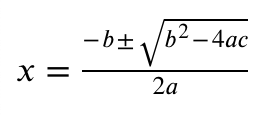
...and make some tweaks...
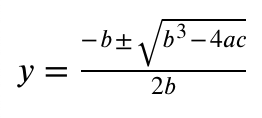
Inline
Inline mode will mark changes at the lowest level (ie. for MathML elements mi, mo, mn) as possible. This is the default mode. We achieve this by wrapping changes in an <mrow> to keep the number of required arguments in certain elements, e.g. <mfrac>, valid.
Using our example, an inline result will look as such:
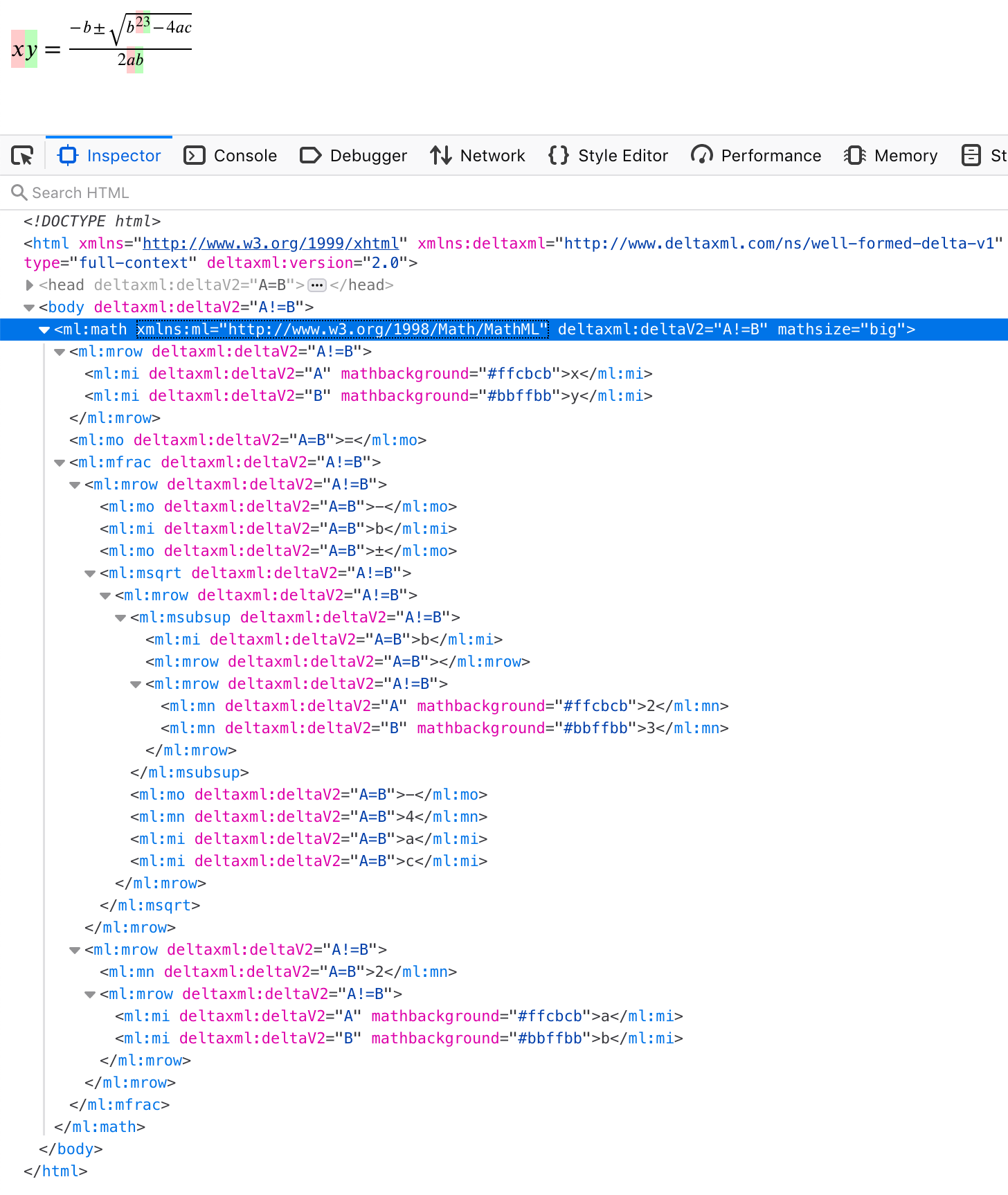
Note for example when changing b2 to b3, the change has been wrapped in an <mrow> to keep <msubsup>'s required arguments correct.
If we cannot display the changes inline, we fall back to producing a "detailed adjacent" view to ensure the output is valid and renderable.
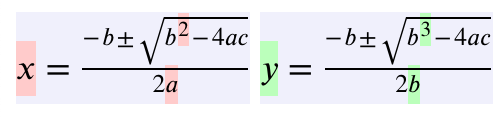
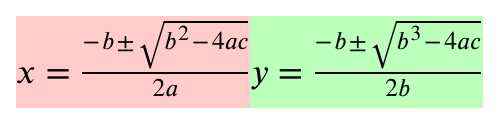
Detailed Adjacent
This mode is a side-by-side view that duplicates the inputs, with individual changes highlighted. For readability, we have added a grey background and a small gap between the two formulas.
Here's what our example looks like using this mode:
Adjacent
Adjacent mode is the simplest view and just duplicates the two inputs to give a "before" and "after" view.
Limitations
MathML has been implemented as an M.V.P to garner feedback from customers. As such, there are various limitations to it:
-
We are currently only handling Presentation Markup.
-
Inline comparison will only mark inline changes to
<mi>,<mo>, and<mn>elements. -
Our comparison presumes your MathML inputs are valid MathML. If they aren't, you may get incorrect results. We may consider validation of MathML inputs in a future release. This would allow us to provide information when inputs aren't valid, and suggest how to fix the errors.
-
We are currently ignoring changes to MathML attributes and resolving by picking the B version
Resources
DocBook Resources
[docbook-4-tdg] http://www.docbook.org/tdg/en/html/docbook.html. DocBook 4: The Definitive Guide.
[docbook-5-tdg] http://www.docbook.org/tdg5/en/html/docbook.html. DocBook 5: The Definitive Guide.
[docbook-xsl] https://cdn.docbook.org . The DocBook XSL Stylesheets.
[docbook-xsl-download] http://sourceforge.net/projects/docbook/files/ . DocBook XSL download page.
[docbook-xsl-guide] http://www.sagehill.net/docbookxsl/index.html. DocBook XSL: The Complete Guide.
[docbook-xsl-custom] http://www.sagehill.net/docbookxsl/CustomizingPart.html. Customising DocBook XSL section in DocBook XSL: The Complete Guide.